How to Find the LCP Element?
The LCP metric is one of the most important.
To optimize it, you need to identify the “LCP element”—the largest element within the user’s visible viewport. The time this element renders determines the LCP timing.
If you want to optimize LCP, you should locate the LCP element on your site’s most-visited page types.
LCP elements can be identified in several ways:
1) PageSpeed Insights
This is the PageSpeed Insights section you probably know...
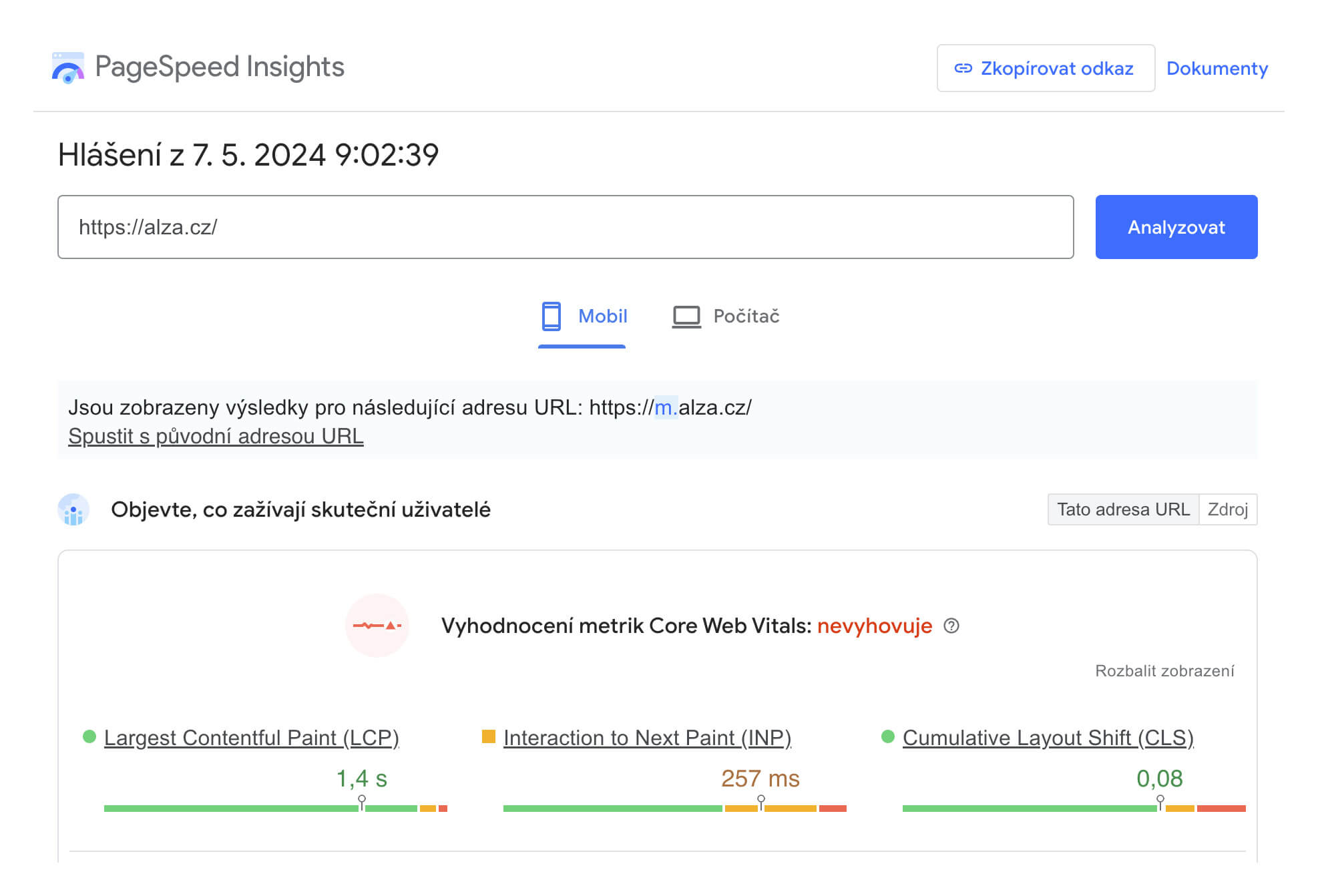 “PageSpeed Insights”
... but for identifying the LCP element, look for the “Largest Contentful Paint Element”:
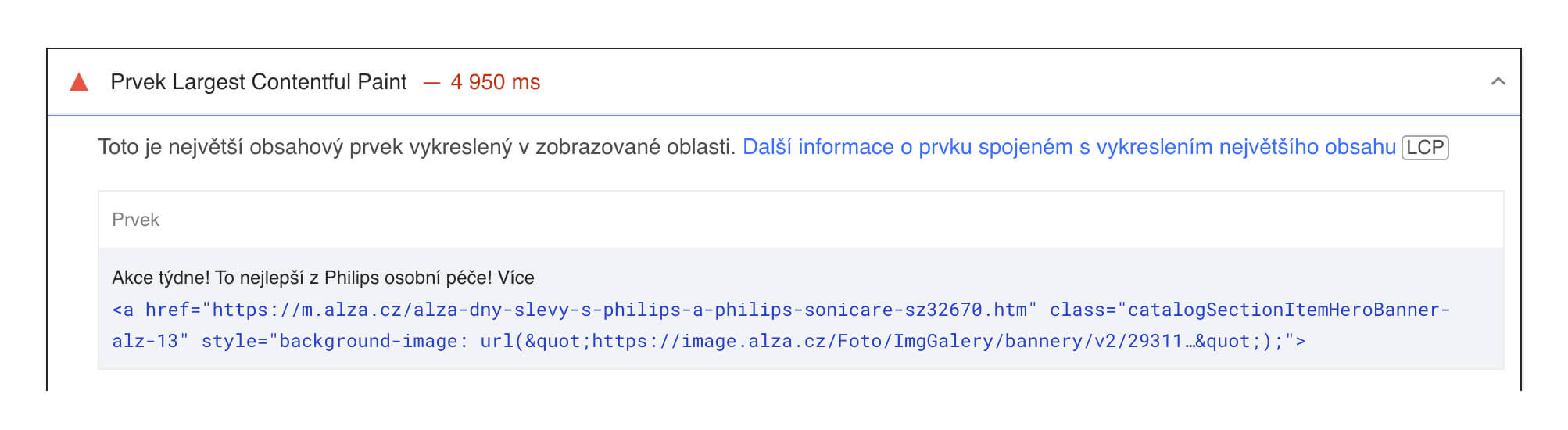 “LCP element”
See PageSpeed Insights. It’s based on the Lighthouse outputs, which also underpin our speed tester at pagespeed.cz, and is available in Chrome DevTools.
2) Lighthouse in the browser
Lighthouse powers PageSpeed Insights and is available in Chrome DevTools, and also underpins our speed tester.
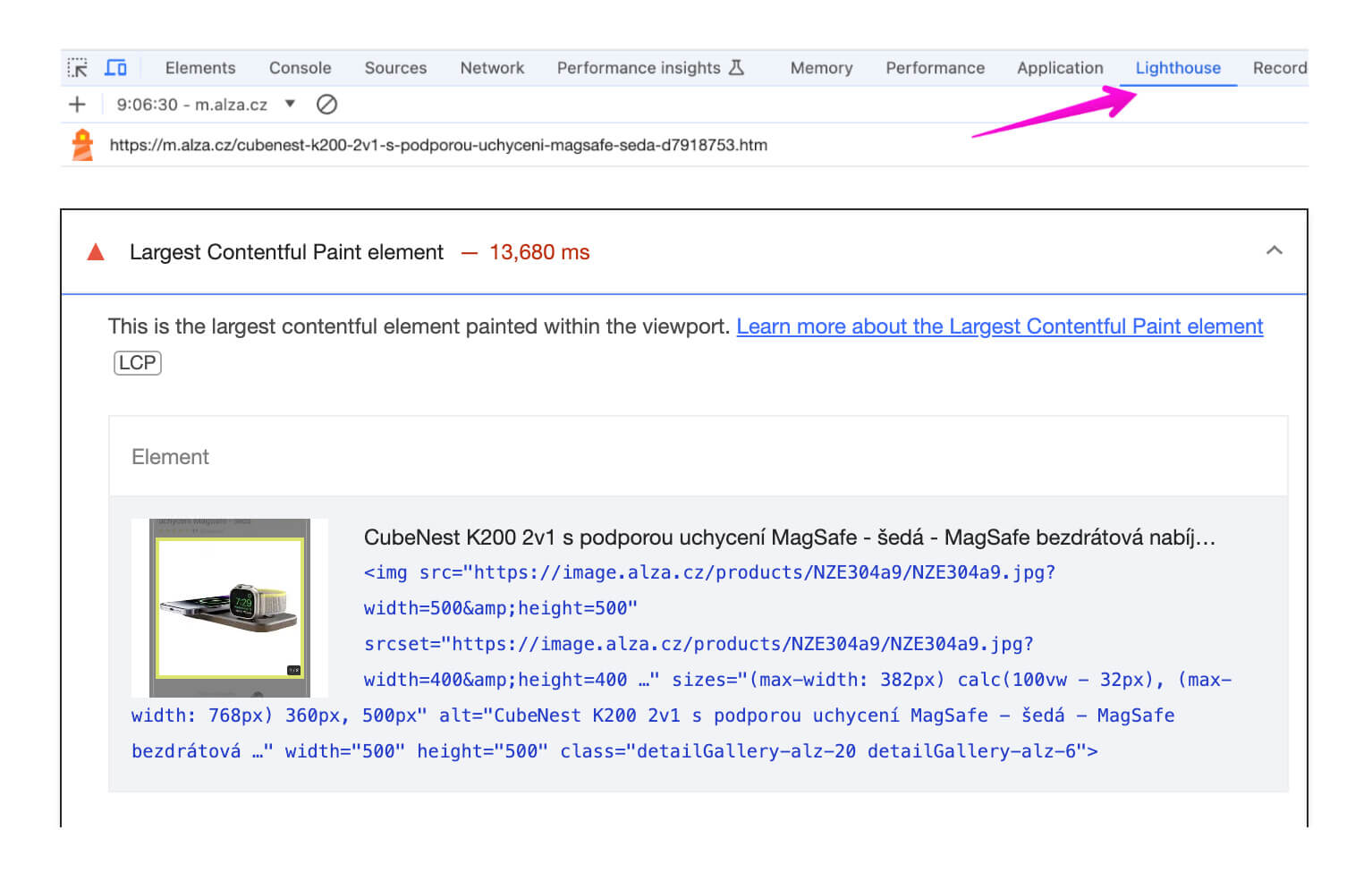 “Lighthouse”
See Lighthouse at https://developer.chrome.com/docs/lighthouse/performance/lighthouse-largest-contentful-paint.
3) Web Vitals Extension
Just install the Web Vitals extension and look at the console in DevTools:
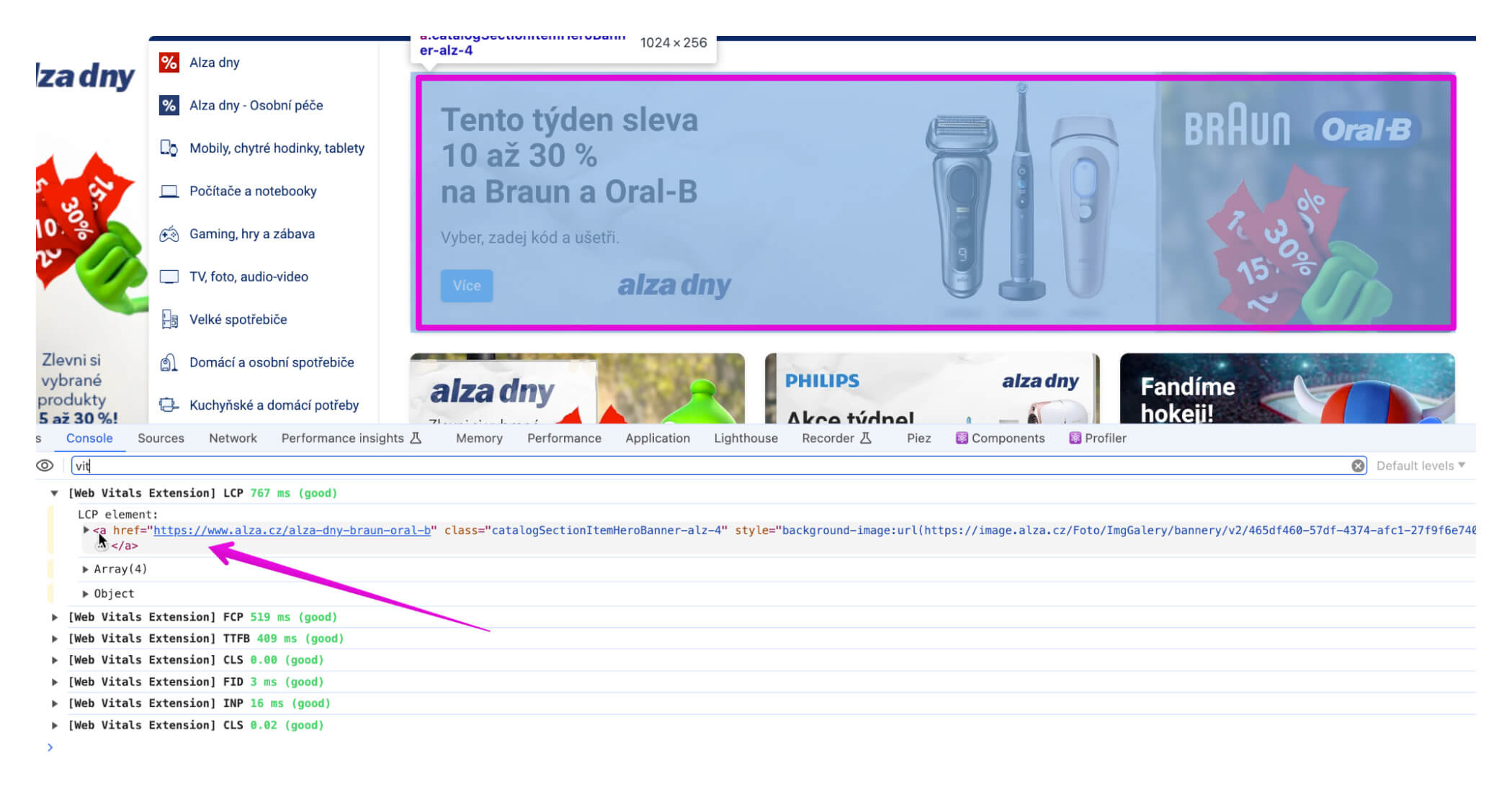 “Web Vitals extension”
4) Performance panel in DevTools
This is a gadget for the enthusiasts:
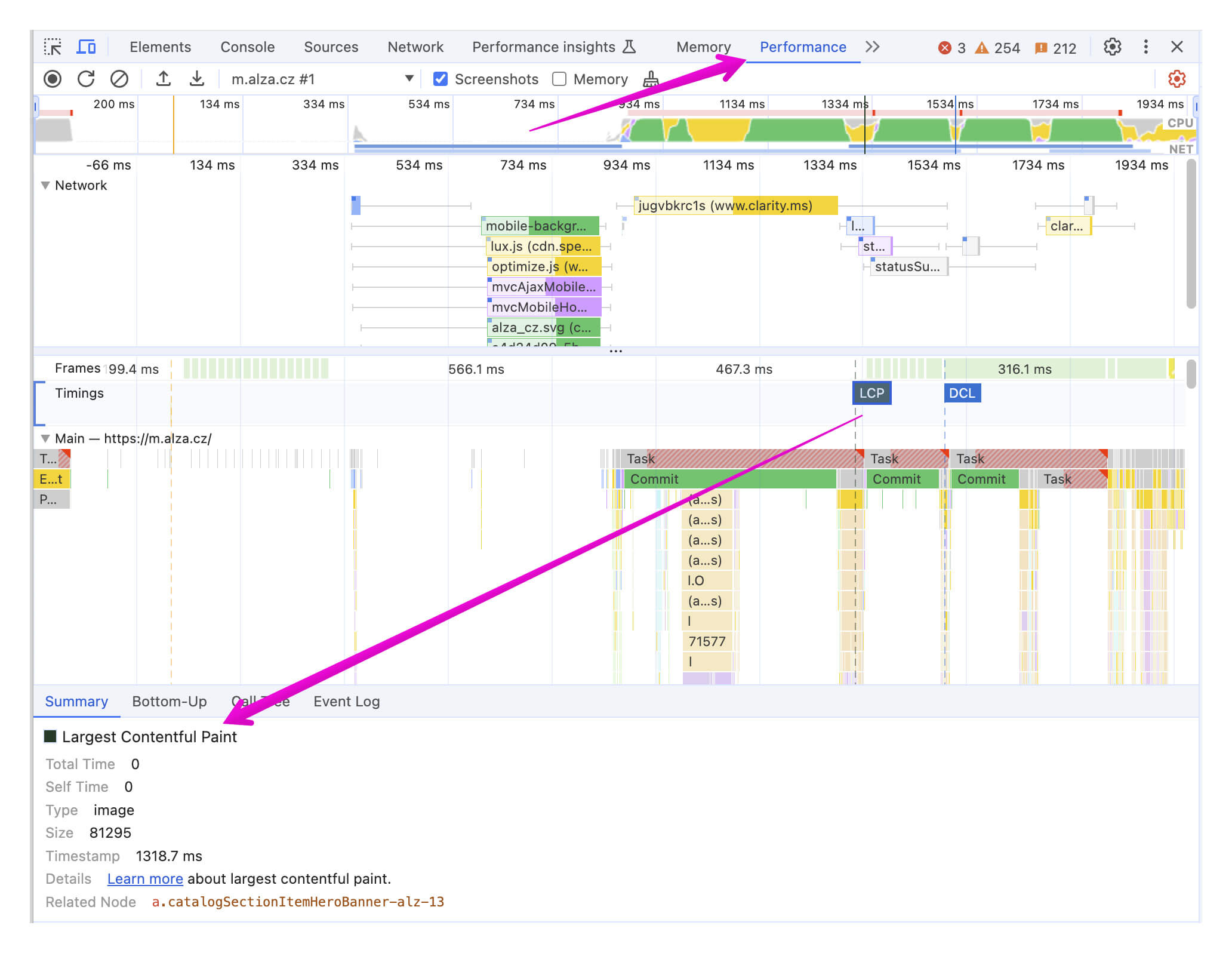 “Performance panel and timeline”
Once you’ve found the LCP, the goal is to render as quickly as possible.
You achieve this by speeding up the resources needed for its rendering and by giving the lowest possible priority to all other resources.
We discuss this in our article on LCP optimization: LCP optimization.