Lazy-loading Images: A Detailed Guide
“Lazy loading” is a deferral technique that optimizes page load speeds. Images and other assets are loaded only when they are near or enter the user’s viewport.
What does this technique help with?
- Reduces the initial page load time (First Contentful Paint)
- Helps display the LCP element sooner (improves Largest Contentful Paint)
- Saves data and reduces the number of requests
Overall, this method enhances user experience, especially on mobile devices or slow connections.
In this in-depth lazy-loading guide you’ll learn how to implement the technique, measure its impact, and the speed improvements we’ve seen after implementation.
HTML provides the loading attribute to specify how to load elements. You simply add this attribute to the <img> tag.
<img src="image.webp" loading="lazy" alt="…" width="200" height="200" />
The loading attribute supports two useful values:
lazy— images are loaded only when near or inside the viewporteager— images load immediately (this is the default)
How to implement image lazy loading?
We generally recommend a conservative approach: apply loading="lazy" to all images that reliably reside outside the first viewport. There are several approaches, and we’ll cover them here.
Conservative approach: images outside the first viewport
Load all images outside the first viewport lazily using the loading="lazy" attribute. This works well in most situations.
In addition to LCP considerations, prioritize images that form important UI elements or help users recognize the brand and identify the site clearly. Use loading="eager" for the LCP element, header icons (especially on mobile headers), and the brand logo.
Radical approach: all images except the LCP element
For experienced developers, you can lazy-load all images except the largest image in the initial viewport (the LCP element).
Achieve this by making an exception for the LCP element and setting loading="eager" or omitting the attribute entirely for that image.
All other images on the page then use loading="lazy". Note that this approach carries a risk: if the HTML or design changes, lazy loading can become misapplied.
A lazy-loaded image must always have defined dimensions via the width and height attributes. This prevents CLS issues. Also, we strongly recommend using the WebP image format.
Never lazy-load the LCP element
Never apply loading="lazy" to the LCP element, as it will harm the LCP metric. Lazy-loading can give that element a lower priority and delay its download.
The combination of a JavaScript lazyload and applying it to the LCP element is particularly problematic, as the browser will wait for script loading and execution before fetching the image.
JavaScript lazy loading
For advanced implementation you can use JavaScript and the Intersection Observer API.
The Intersection Observer API lets you monitor elements as they approach the viewport. You can use it for custom lazy-loading logic.
This is a highly advanced technique and not recommended for routine optimization.
Pros:
- Flexibility
- Ability to define complex loading conditions
- Can be used for JS-driven components like carousels
Cons:
- Higher complexity
- Delays in loading and initializing JavaScript
- Requires a noscript fallback for non-JS browsers
- Limits the effectiveness of the browser’s preload scanning
- Improper implementation can hurt crawl visibility
Content management systems like WordPress or Drupal often offer plugins that implement lazy loading with JavaScript. If you use such a plugin, consider disabling it and instead rely on native lazy loading via the loading attribute.
Learn more about WordPress optimization in our WordPress optimization article.
Our recommendations
- Use native lazy loading, which is broadly supported
- Reserve JavaScript lazy loading for more complex cases that can’t be covered by the native attribute
Loading vs fetchpriority
The value eager instructs the browser to load the image immediately if it’s off-screen. An image loaded with loading="lazy" and fetchpriority="high" will not load until it’s near the viewport. Using fetchpriority="high" is mainly for critical images; often the browser will auto-prioritize such images anyway.
If you want to boost priority for a key image (e.g., an LCP image), you can leverage priority hints and the fetchpriority attribute:
<img src="lcp-image.jpg" loading="lazy" fetchpriority="high" alt="…" />
When the image is outside the viewport it won’t load; once near or inside, it loads with high priority. This combination isn’t always necessary, since modern browsers typically give the image high priority already.
Distance from the viewport: image loading thresholds
Images visible in the viewport without scrolling load immediately. Images far below the viewport load only as you approach them.
Chrome’s lazy-loading implementation aims to fetch off-screen images early enough to complete loading by the time the user reaches them. Thresholds are roughly:
- About 1,250 px for fast networks (4G+)
- About 2,500 px for slower networks (3G or slower)
Ultimately, these values are browser-driven and approximate.
How to analyze whether lazy loading is implemented correctly?
When implementing lazy loading you should determine which elements are suitable for lazy loading and verify that you’ve done it correctly.
Analyzing lazy loading in the browser timeline
You can analyze via Chrome DevTools in the Performance section. Image loading appears as separate requests over time as the user scrolls.
Initially, only images visible in the first viewport or close to it are loaded. Other images with loading="lazy" start loading after user interaction (e.g., scrolling).
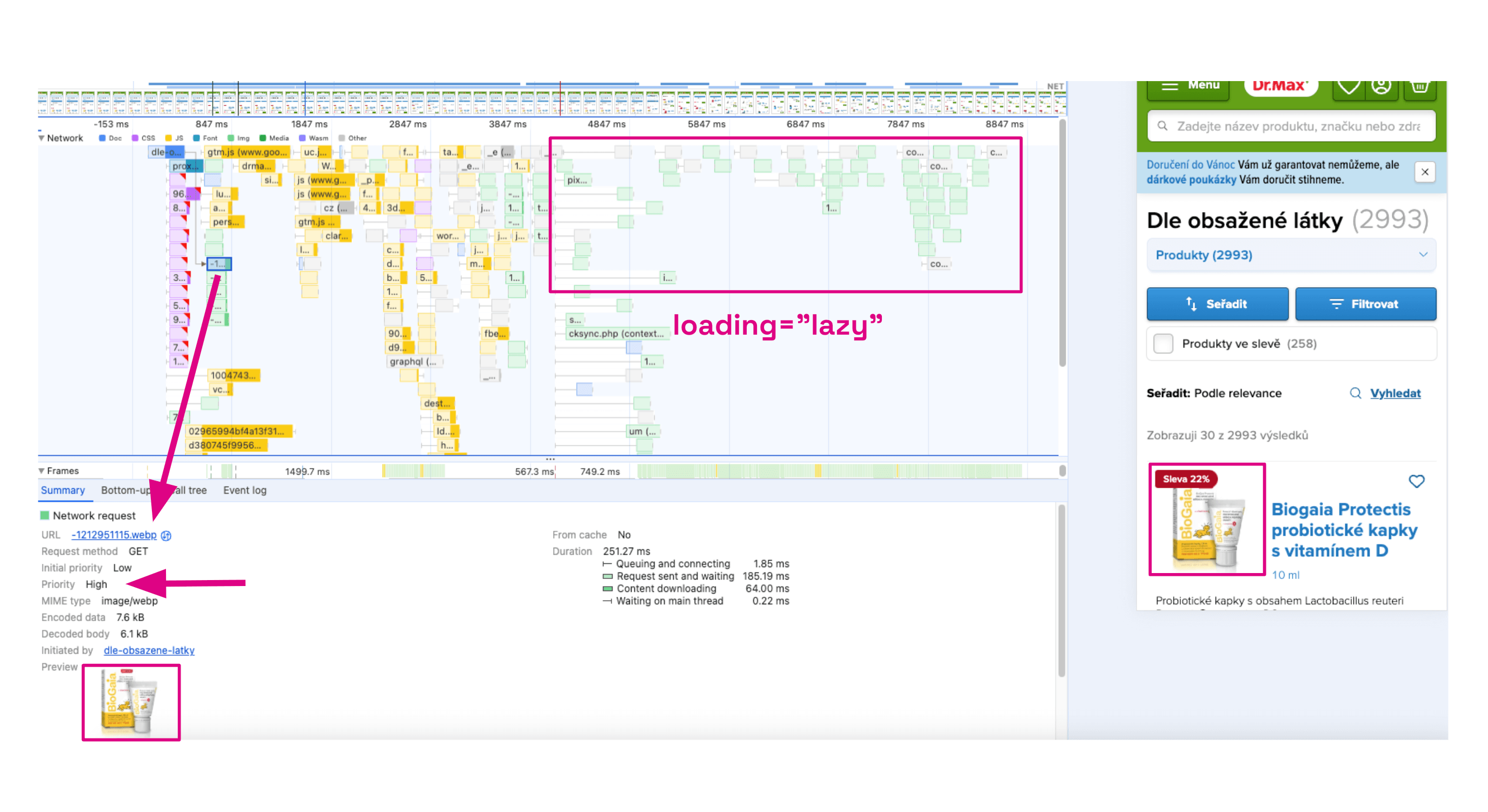 Images with
 loading="lazy" begin downloading on user interaction.
Analysis in Lighthouse or PageSpeed PLUS Monitoring
In Lighthouse or PageSpeed PLUS monitoring you can identify images suitable for lazy loading in the Lighthouse test’s “Opportunities” section.
- In the main menu select the “Opportunities” tab.

- Choose a test for a specific URL.
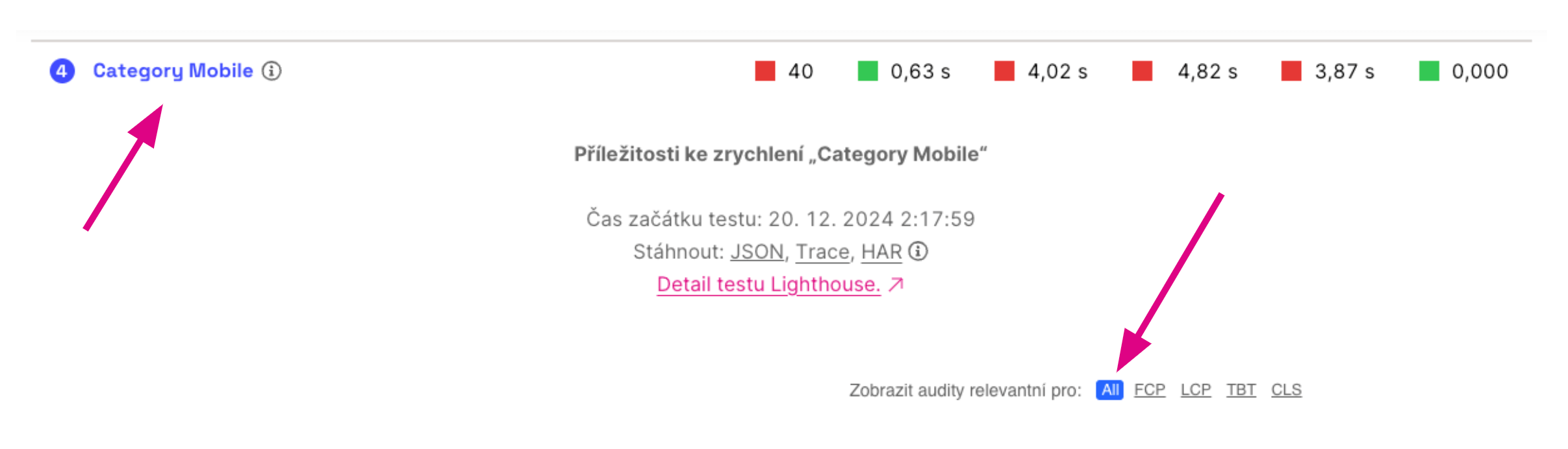
- Find “Defer off-screen image loading.” The list shows images that would benefit from lazy loading.
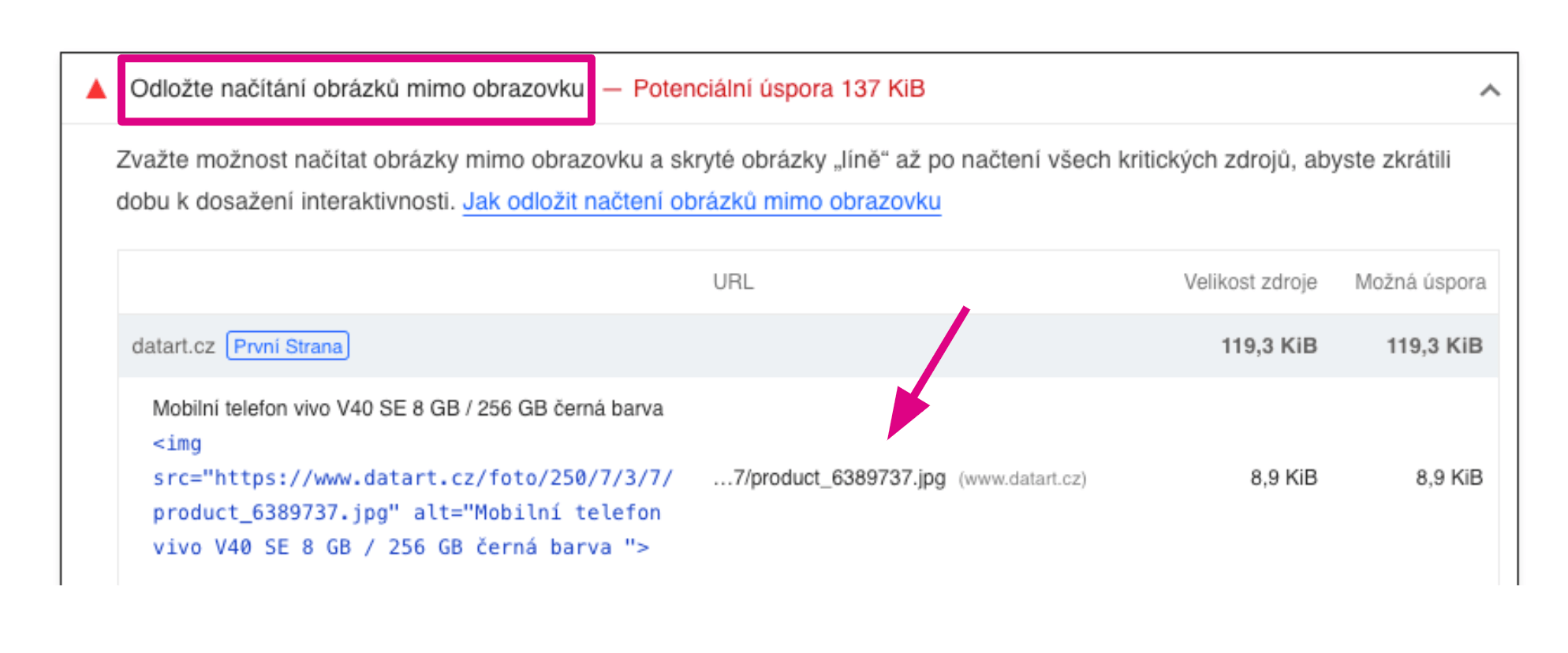
The guidance here aligns with the conservative approach outlined above.
Lazy loading isn’t limited to images; you can apply it to other elements as well.
Lazy loading for iframes
You can lazy-load iframes too, which can significantly improve Core Web Vitals on pages with embedded videos or maps. The usage is similar to images:
<iframe src="https://example.com" loading="lazy"></iframe>
Browser support for lazy loading
All modern browsers support the loading attribute. We always recommend native lazy loading over JavaScript-based approaches.
Real-world examples from our speed optimization practice
Implementing lazy loading on images
For a client, applying lazy loading to menu and footer images reduced image data volume.
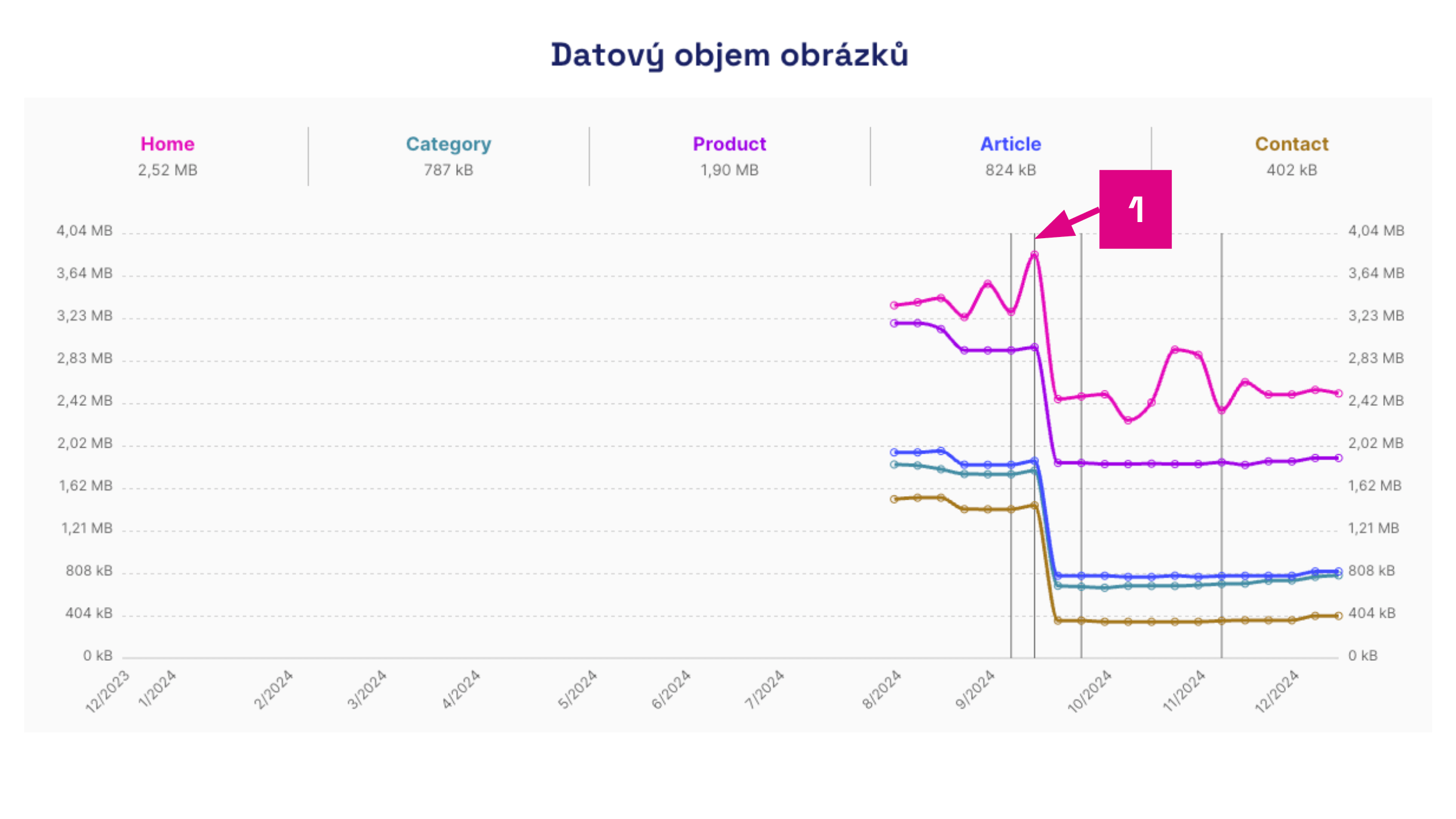 Monitoring PLUS — reduced image data volume.
Numbers in the image:
- Reduction in image data volume from lazy loading
This also improved the LCP metric.
Replacing JavaScript lazy loading with native support and higher priority
Replacing a JS lazy loader with native lazy loading and boosting priority with the fetchpriority attribute significantly sped up the LCP image loading on slow connections (about 2 seconds faster on Fast 3G).
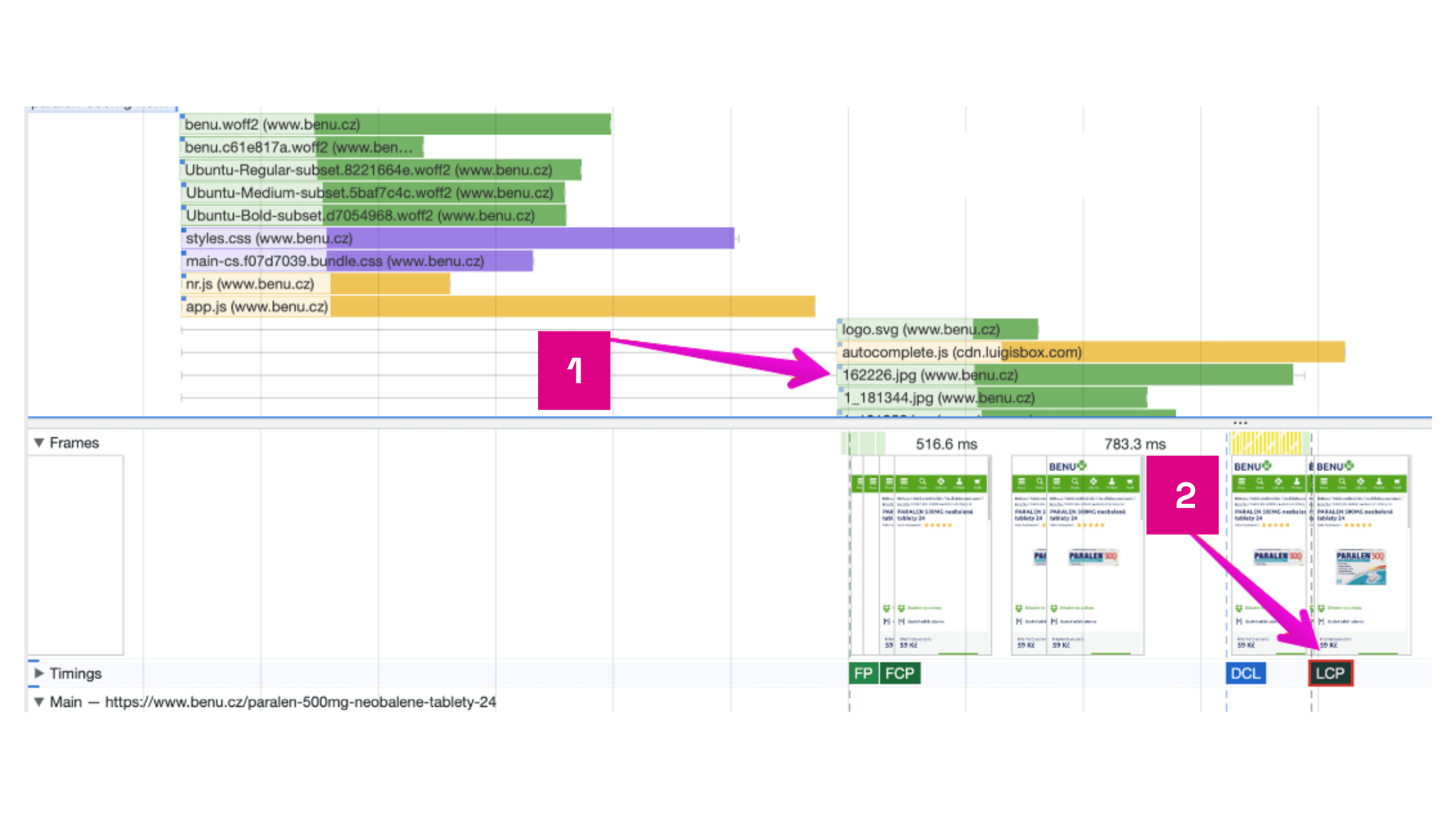 Before optimization.
Explanation:
- LCP image started loading after the JS bundle finished.
- LCP image appeared on the page.
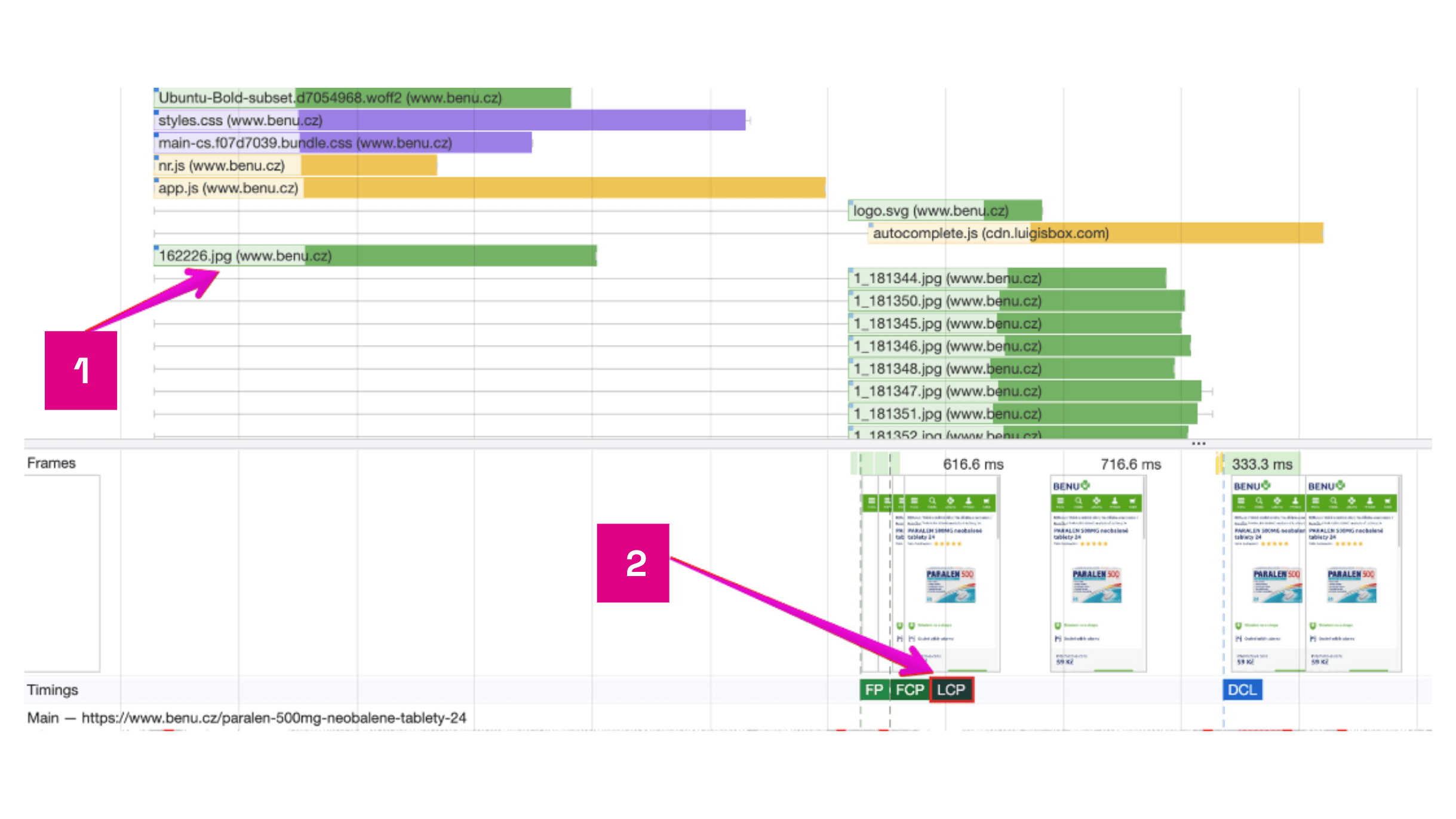 After optimization.
Explanation:
- LCP image started loading as soon as the HTML was downloaded.
- LCP image appeared on the page.
Summary
- Lazy loading images is a foundational and highly effective way to optimize page load speed.
- Conservatively defer loading for images outside the first viewport. Do not lazy-load images that are part of the LCP element, as speed may suffer.
- Native lazy loading is recommended; use JS lazy loading only for complex cases.
- Consider fetchpriority for critical images when appropriate.
- Analyze with DevTools, Lighthouse, and monitoring tools to verify improvement.