Summary Report
The Summary page provides a quick view of your site’s current speed across contexts and measurement types:
- From measured domains to individual pages.
- From speed data for Google users (Chrome UX Report, CrUX) to synthetic measurements.
The Summary page gives you an immediate overview of the state and outlines optimization priorities.
Speed data in tables
For each tested domain and tested URL, we display available speed data in a clear table that many of our users rely on:
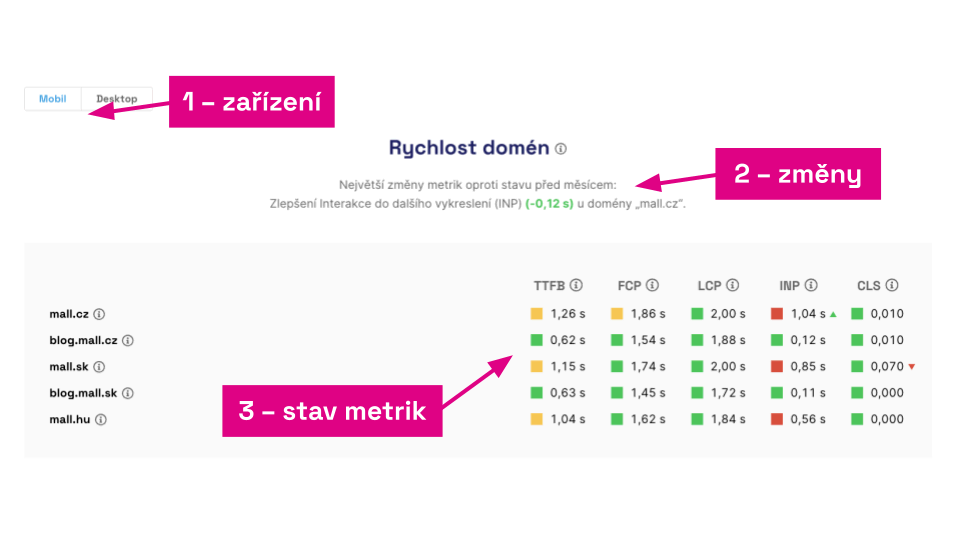 Key metrics for Mall.cz at a glance.
As shown in the image, we display all metrics that are part of the Core Web Vitals set or related metrics provided by Google in the Chrome UX Report.
This is useful for quick comparisons of your sites’ speeds or benchmarking against competitors.
Changes in metrics in charts and text
In all charts you’ll find a textual summary of the current state and changes over the last month. In the image above you’ll see this under item (2).
Our dashboard users love the arrows that show metric trends compared with a month ago. This is also available directly in the Summary report, but only if you’ve been measuring for at least a month.
If you monitor site speed regularly, this view helps you quickly see the current state, what’s changing, and what to watch for.
Specific tables in the “Summary”
Domain Speed
The most important view of speed, because it shows the health of your entire site for users. Data come from Google’s Chrome UX Report. You’ll see the 75th percentile for Chrome users over the last 28 days. Not every domain has CrUX data; availability depends on monthly traffic. See more in the [Domains report].
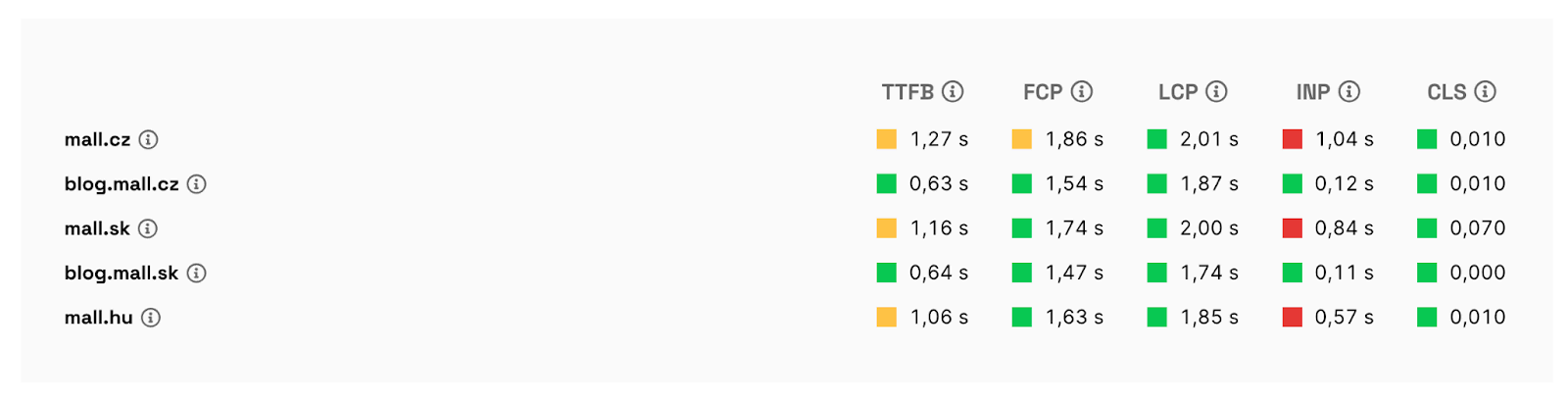 Domain speed status.
Watchdog
Status of the daily synthetic measurements for all pages. Here we care not about a single metric value, but about deteriorations lasting three days or more. If a metric meets the thresholds, it’s green; currently failing is red. In [Settings] you can configure [notifications] to email, Slack, or Teams. More in the [Watchdog report].
 When Watchdog is green, all is well.
🔐 The Watchdog feature is available only with [Monitoring Plus].
Page Speed for Users
Here you’ll see the speed of specific measured pages. Data come from Google’s Chrome UX Report and show the 75th percentile over the last 28 days for all Chrome users. These data are available only for the most-visited URLs; even large sites have data for only a few dozen pages.
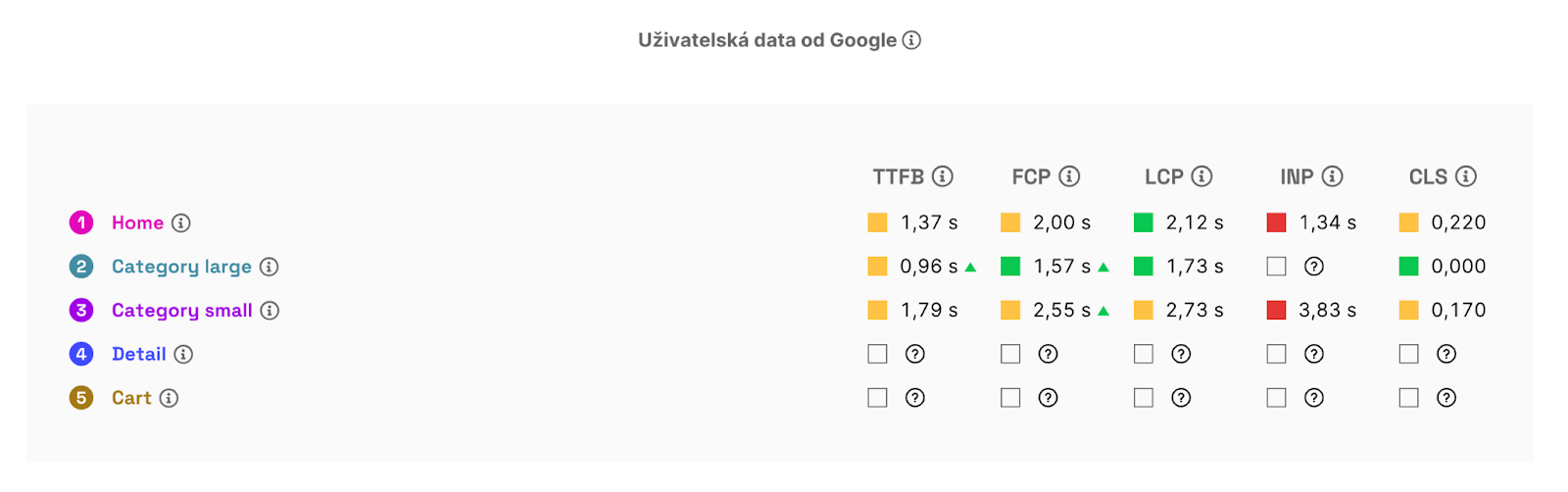 User data may not be available for all measured URLs.
Lighthouse-based Page Speed
Lighthouse data. Less precise machine measurements, but they provide more metrics and are available for virtually every page. For optimization priority, Lighthouse data are the least important since they often don’t reflect real user experiences. They’re for monitoring and optimization, not targets.
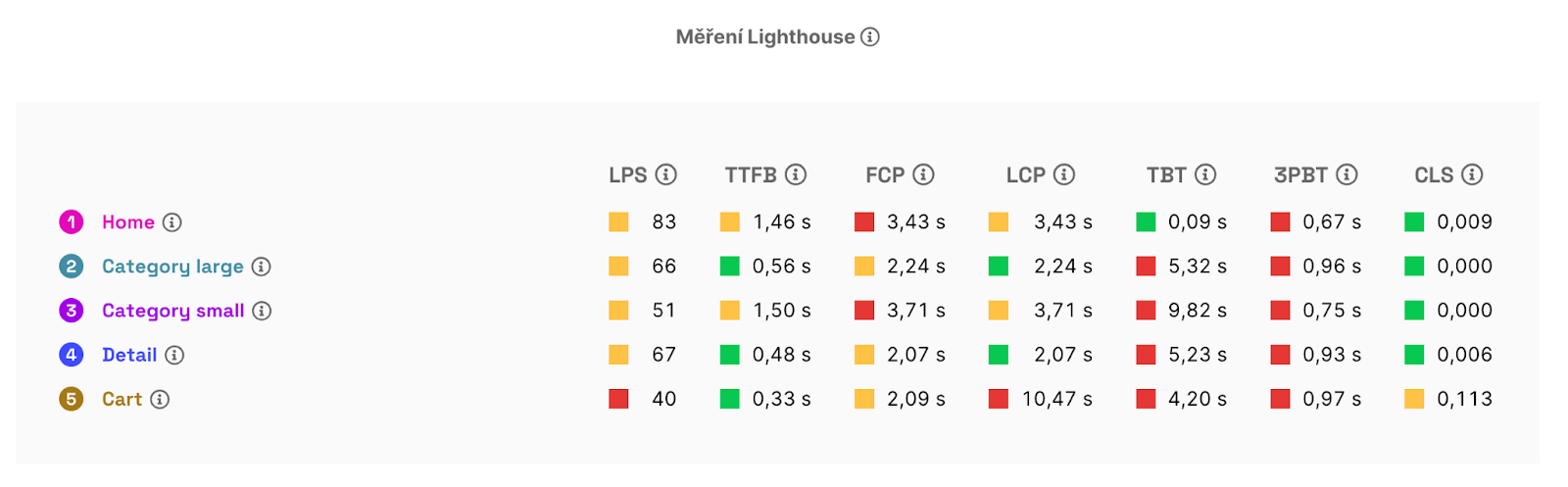 Lighthouse metrics are available for all pages, but not as precise.
How to read the Summary for optimization planning
Here are a few tips for interpreting the data:
-
The top priority is green Core Web Vitals—LCP, INP, and CLS—at the domain level. If the “Domain Speed” chart shows red on your site, focus on these first. Fix the red metrics, then the orange.
-
The “Page Speed for Users” chart (if it has data) or the “Lighthouse (Synthetic) Page Speed” chart shows per-page metric status. Again, aim to meet the three Core Web Vitals and prioritize red metrics.
-
Remember that Lighthouse data are indicative and may not reflect real user experiences.
-
If you lack enough user data for pages, rely more on the Core Web Vitals report in Google Search Console. It shows URL groups that may be problematic for your users.
For a deeper view of your site speeds, refer to the specific reports, such as “Pages,” “Domains,” and others.
