Total Blocking Time metric (TBT)
Total Blocking Time (TBT) is a web performance metric that indicates the total time during which the rendered page is unable to respond to user input.
The TBT metric, also known as “Total JavaScript Blocking Time,” measures the duration after the First Contentful Paint (FCP) when the main browser thread was blocked by JavaScript and the page couldn’t respond to user input. This is typically a JavaScript performance issue, and TBT often directly impacts the important INP metric.
What does browser blocking mean and what are long tasks?
A blocked main thread is when the browser must process a long task (a “long task”). It is any task that runs on the main thread for more than 50 milliseconds.
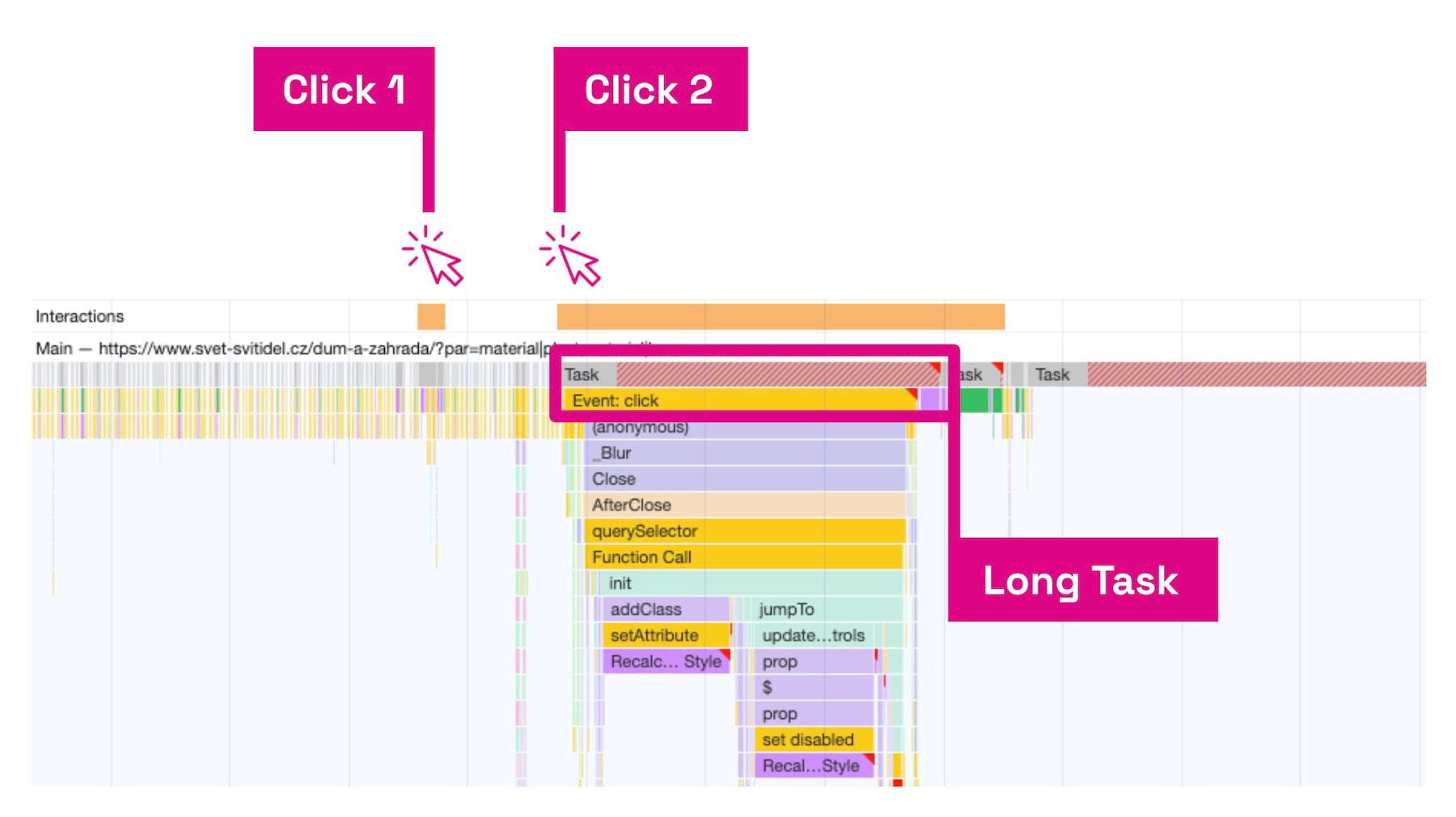 What a click looks like when slowed by a long task.
As the image shows:
- The first interaction (shown as “Click 1”) happens quickly because the browser can respond immediately.
- The response to the second interaction (“Click 2”) will be delayed as the browser handles a JavaScript file in the background (“Long Task”).
We say the main thread is “blocked” because the browser cannot interrupt the running task. The user clicks or tries to interact, but there’s no response—the browser is busy with a long task.
If a user interacts with the page in the middle of a long task, the browser must wait for the task to finish before it can respond.
If a task lasts longer than 50 milliseconds, the user is likely to notice a delay and perceive the page as slow or unresponsive.
The Total Blocking Time of the page, i.e., the TBT value, is the sum of the blocking times of every long task that occurs after the FCP event within the measured window. Measurement typically ends when the Time To Interactive (TTI) metric appears or at the end of the monitoring session.
Why is it important to monitor TBT
Users don’t want to wait, and when they do wait, they want to know something is happening. If a page has already shown meaningful content (FCP occurred), it’s very likely that users will start interacting. If the page doesn’t respond to user input, users may be discouraged and leave.
As mentioned, TBT also affects one of the three Core Web Vitals, specifically INP. If TBT is high and long tasks exceed 200 ms, INP is likely to suffer as well.
So aim to minimize long tasks and keep Total Blocking Time as low as possible.
Ideal Total Blocking Time values
To provide a good user experience, pages tested on “average mobile hardware” should target a Total Blocking Time under 200 milliseconds. This value is recommended by the Chrome team on Web.Dev.
Let’s also look at values recommended by Lighthouse or related tools such as our own speed monitoring.
| TBT Time | Lighthouse Rating |
|---|---|
| 0 - 200 ms | Green (fast) |
| 200 - 600 ms | Orange (medium) |
| more than 600 ms | Red (slow) |
Measuring TBT
Total Blocking Time can be measured only with synthetic measurements, i.e., via tooling. There are several ways to obtain the TBT value for a specific page.
PageSpeed Insights
Using the PageSpeed Insights tool you can determine the TBT value for each URL individually.
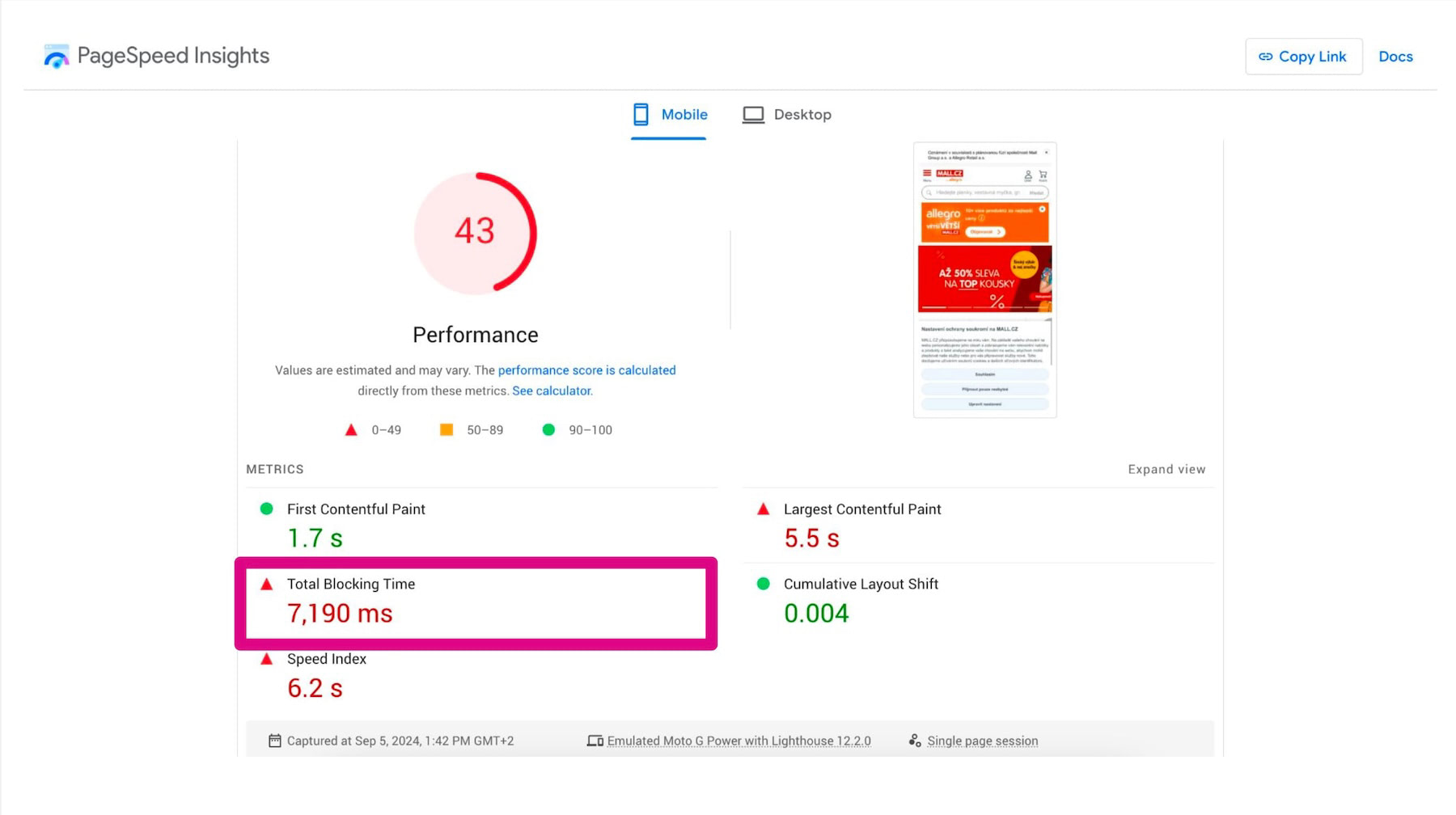 The TBT metric in a Lighthouse report, in this case within PageSpeed Insights.
Monitoring PageSpeed.cz
In our monitoring PLUS we show not only the current TBT value for individual URLs, but also a chart illustrating how the metric changed over time.
In the Pages report we track the evolution of TBT for individual URLs:
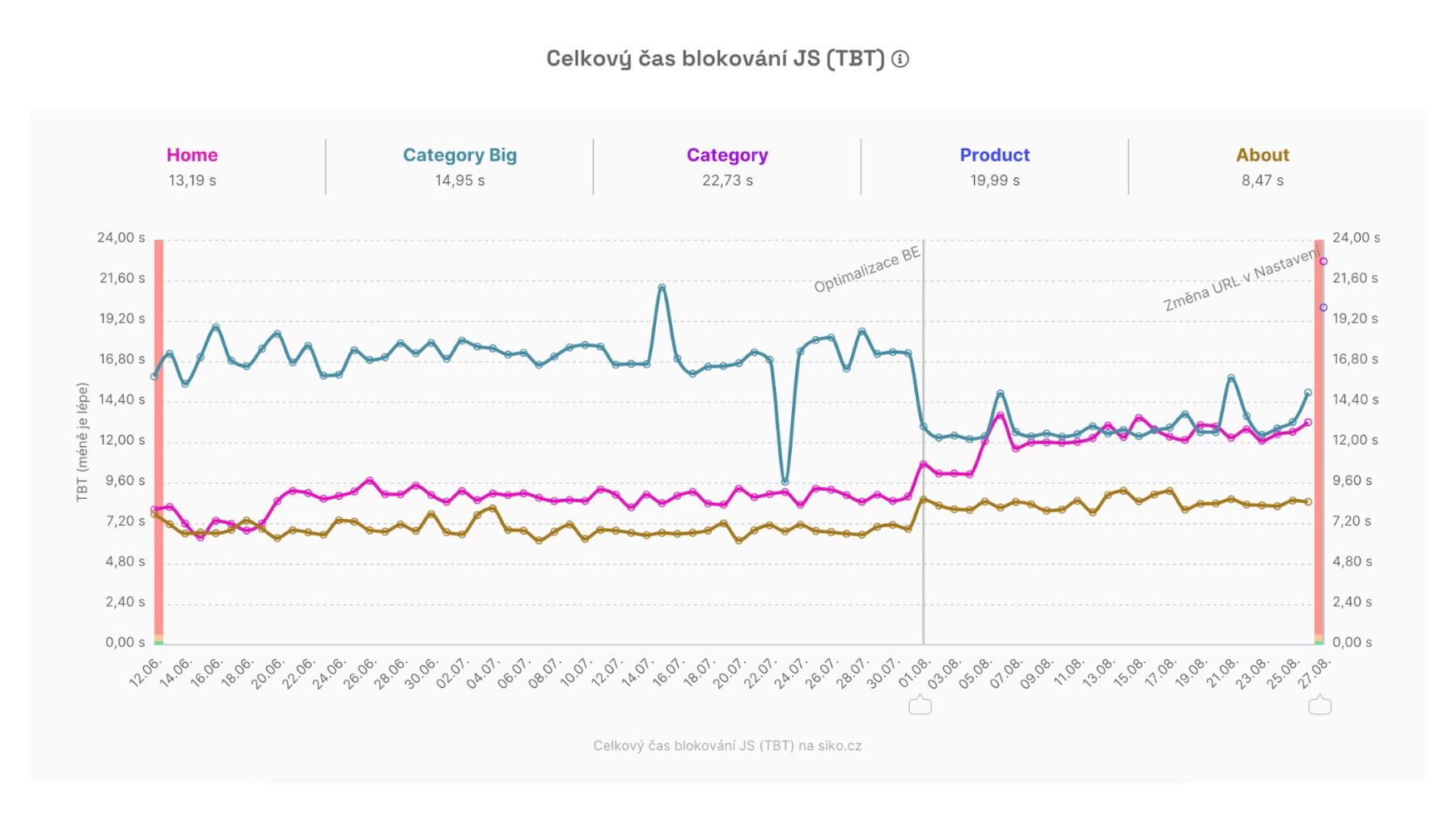 Total Blocking Time for different page types and its trend.
Using Watchdog we also display the ongoing daily evolution of the synthetic TBT value, along with other metrics, and send notifications when limits are exceeded:
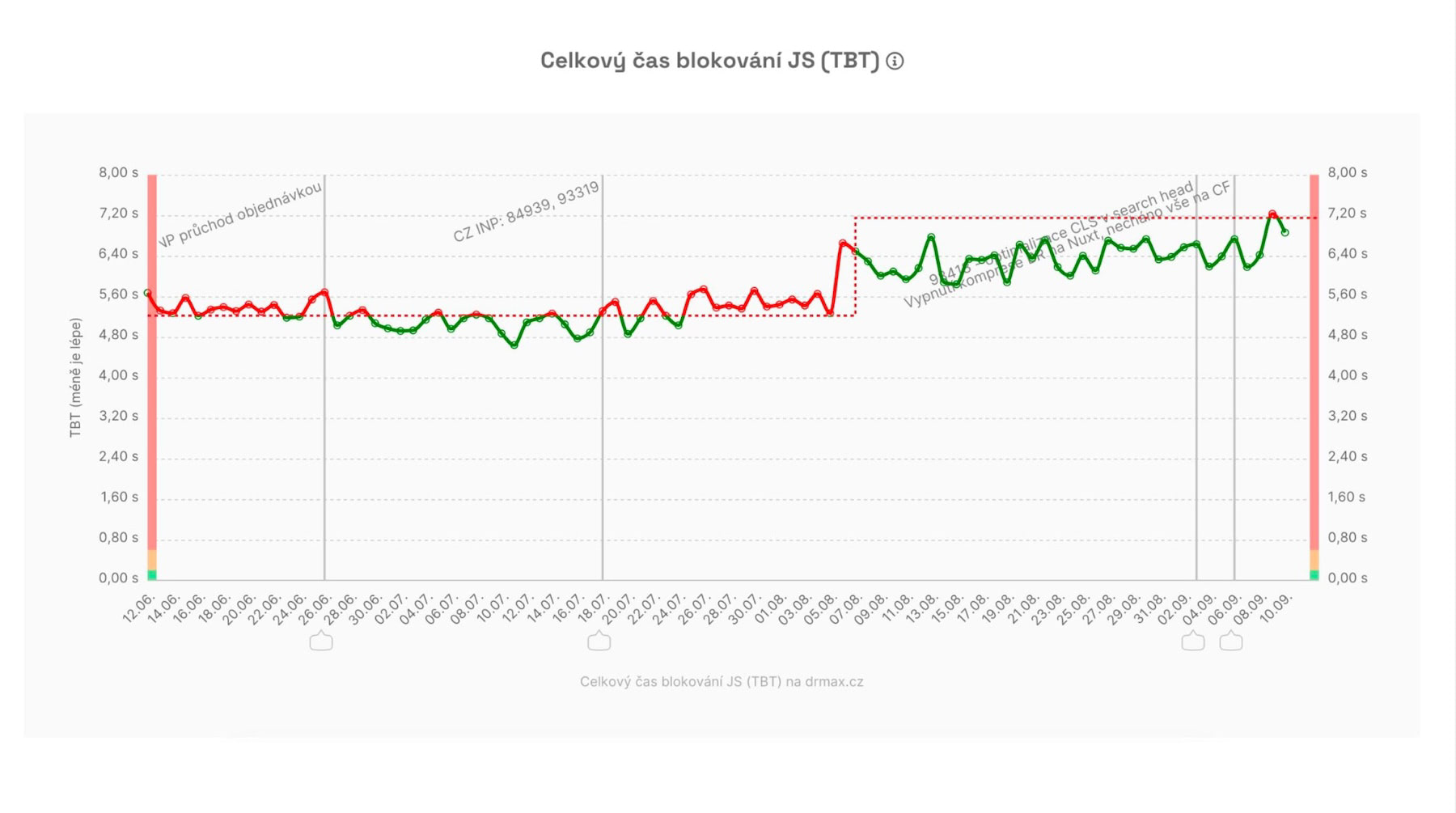 TBT trend in the Watchdog of PageSpeed.cz monitoring.
Optimizing Total Blocking Time
Optimizing TBT mainly means reducing the amount of JavaScript executed on the page.
General recommendations:
- Limit the amount of JavaScript embedded on the page.
- Avoid unnecessary JavaScript libraries.
- Minimize the use of third-party JavaScript.
- Minimize work on the main browser thread.
Concrete TBT issues may look like:
- Generating a long task that hydrates the page in JavaScript frameworks such as React or Nuxt/Vue.js.
- Initializing many functions that run all at once until the DOM Ready event.
- Initializing many third-party JavaScript libraries used for marketing (TikTok, Databreakers, GTM, FbEvents, etc.).
- Initializing JavaScript libraries for components not visible in the initial viewport, so their startup can be deferred.
In all cases, you should limit the amount of code executed on the page or in the current viewport, or optimize the JavaScript that creates long tasks.
Manual optimization of long tasks in JavaScript
Advanced users can locate specific long tasks in Chrome DevTools in the Performance tab (see “Measuring speed directly in the browser”) and optimize the affected code sections.
You can find long tasks on the web easily by following the image and guide:
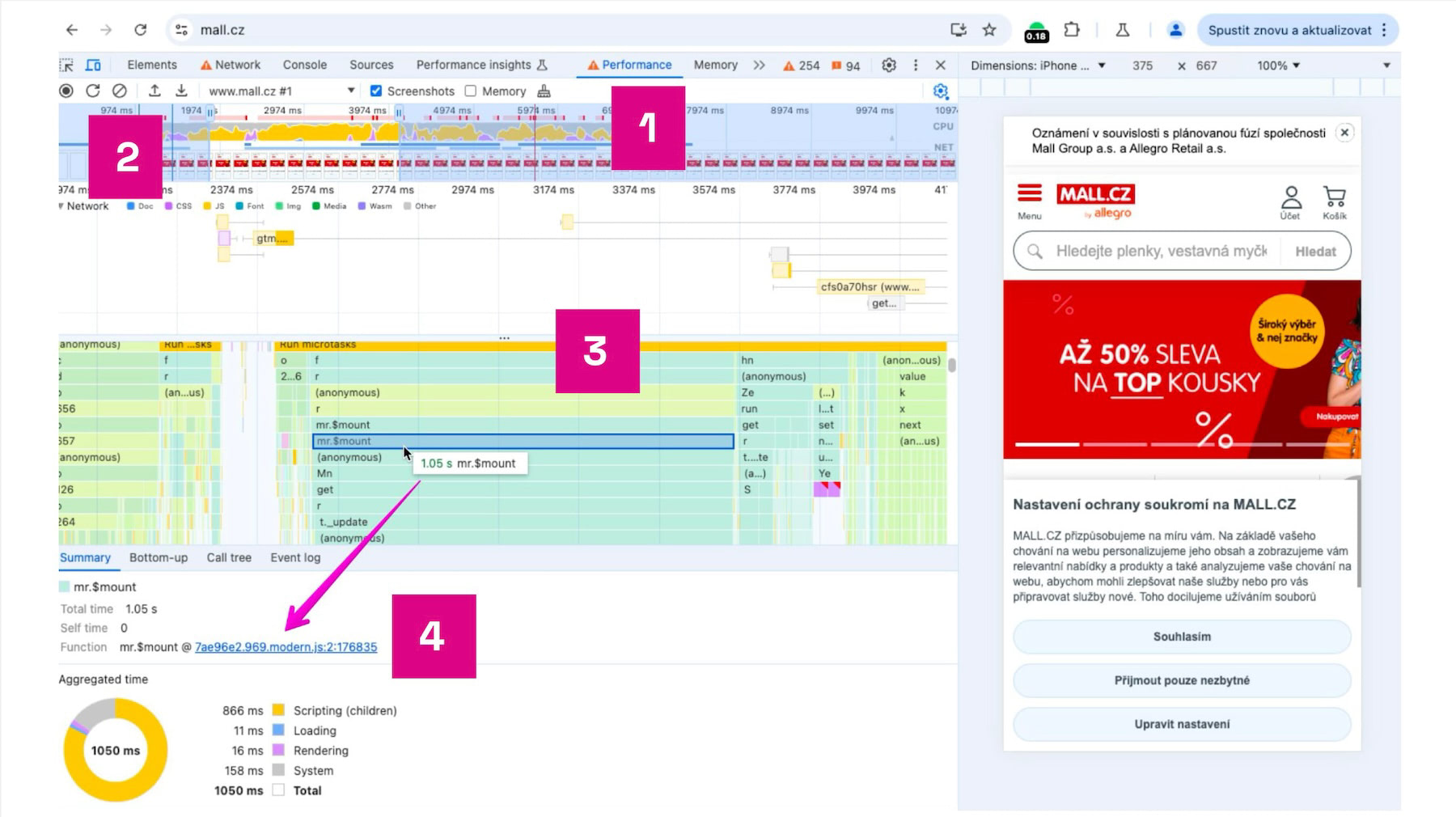 How to find long tasks in Chrome DevTools.
- Open Chrome with DevTools (F12) and load the page you want to optimize.
- Open the Performance tab.
- Run the Reload and Record function to capture the page load.
- Record the page load timeline.
- In the Main line (main-thread work) you’ll see long tasks highlighted in red lasting more than 50 ms.
- By clicking inside a long task, identify which part of the JavaScript is problematic.
For more on optimizing long tasks, also see our article on INP optimization.
Tags:MetricsINPMonitoring PLUS
PreviousPageSpeed.cz Score (SPS)NextTime To First Byte (TTFB)