Web compression with Gzip and Brotli: are you doing it right?
In the broad sense, compression aims to reduce data size while preserving information. Here we focus on lossless compression that saves data when transferring text assets like CSS or JS from server to browser.
We know two main approaches:
- GZIP is older, widely supported, but less efficient.
- Brotli generally yields greater savings. It’s not as ubiquitous, but supported by all major browsers.
Why is it important to deal with compression?
Compressing text files on the web is fundamental. We apply compression to HTML, JS, and CSS, which are sources that influence the time to first render. Naturally, we want these resources as small as possible.
We also apply compression to favicons, SVGs, and fonts. Fonts are a special case: modern fonts in WOFF and WOFF2 formats already include compression at generation. If you enable further compression for these formats, you may end up with a larger file. So be careful.
You can easily check the compression method in the browser. Open DevTools, go to the Network tab, and look for the content-encoding column.
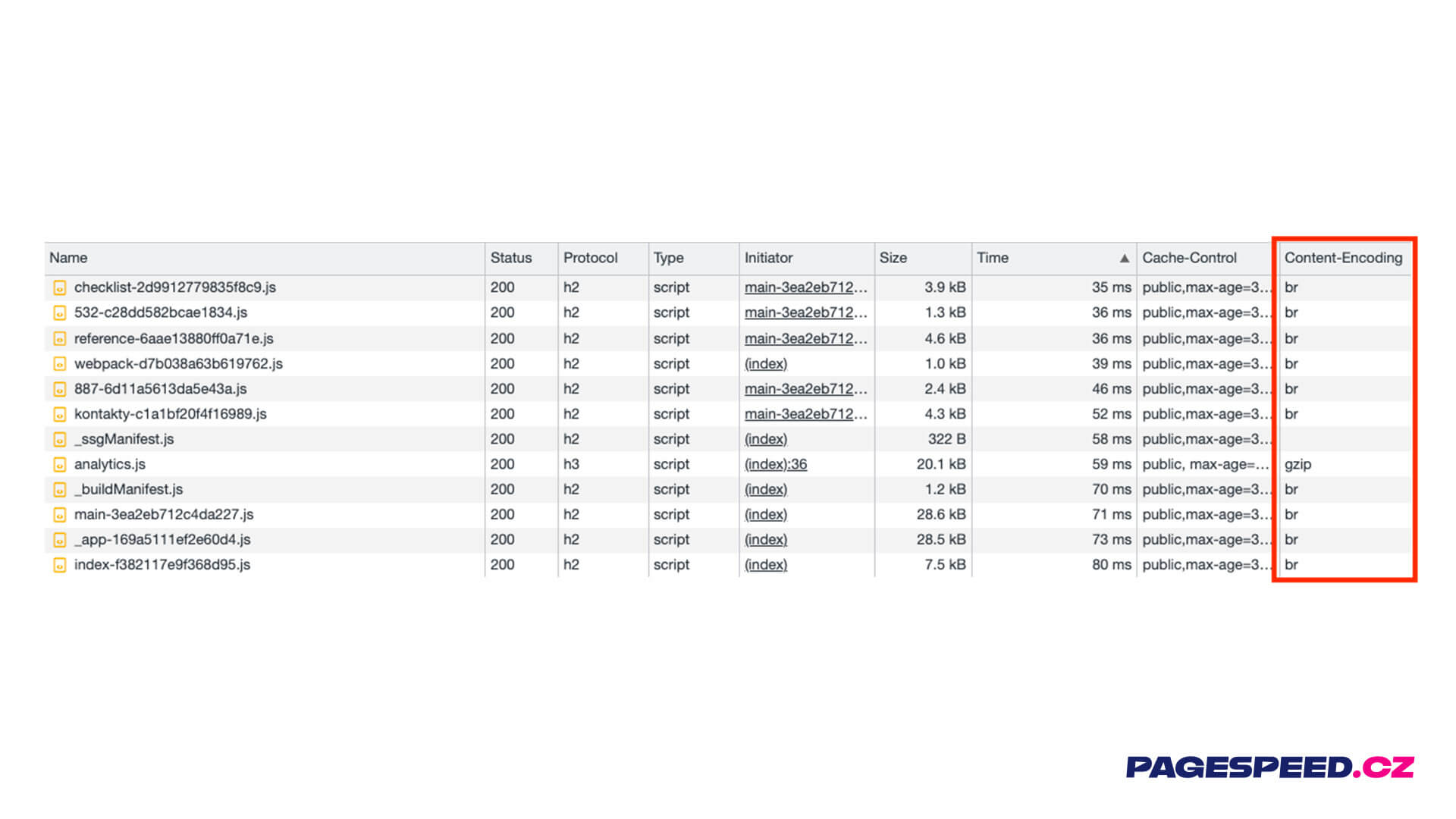 Content-Encoding in DevTools: If nothing shows up, that’s not good.
Unveiling compression level secrets
Setting Brotli and Gzip is not the end of the story. Both methods offer a compression level (level). Gzip has 9 levels; Brotli goes up to 11.
How much difference do different levels make for a 55 KB HTML file or a 261 KB jQuery payload? Quite a bit.
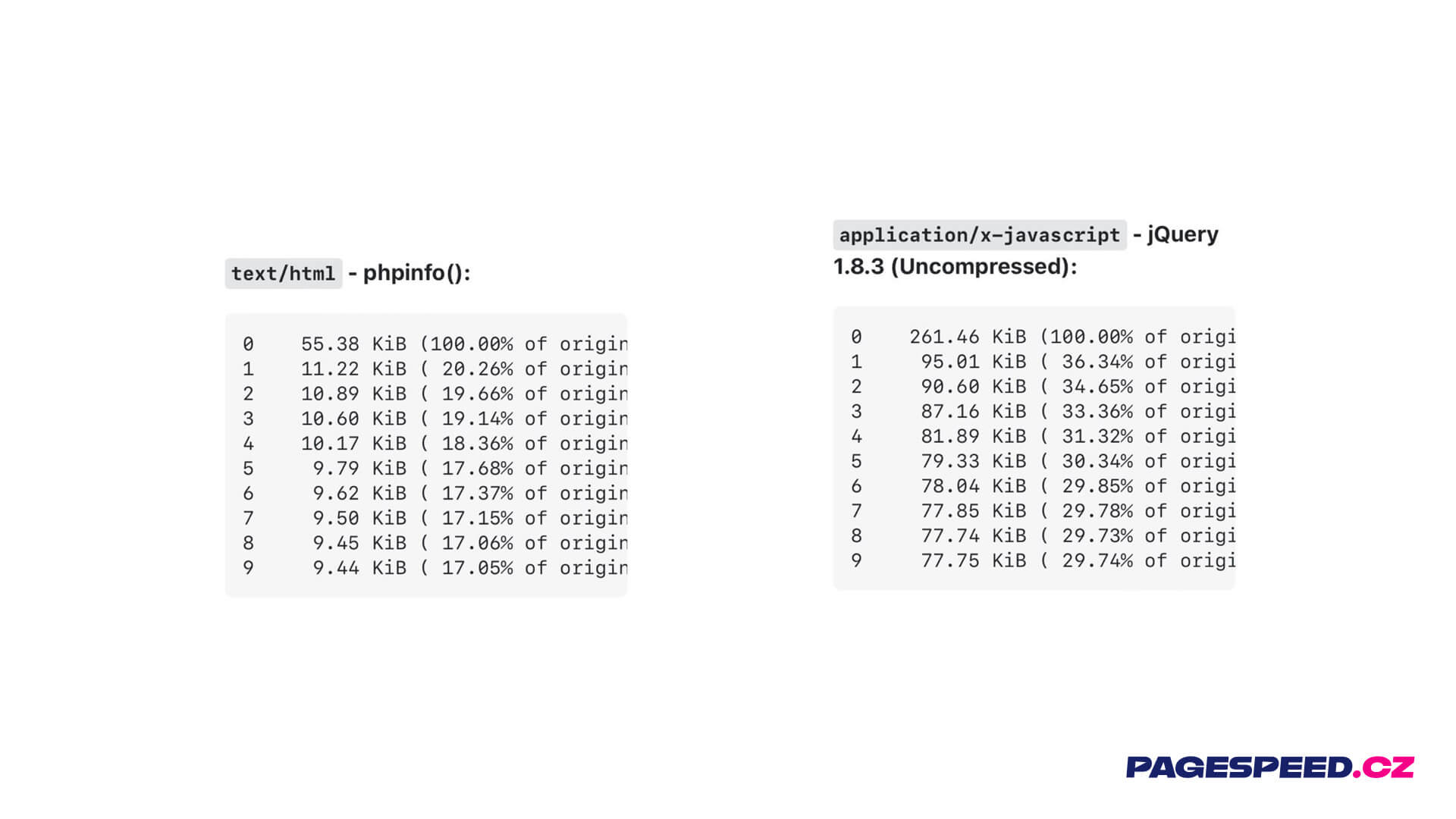 A dull compression? Imagine saving up to two-thirds of data!
The biggest jump is seen when comparing uncompressed versus level-1 compression. Higher levels yield only marginal gains (usually a few percent more). The question is: which level is best?
The hunt for the ideal compression level
When choosing a compression level, also consider your infrastructure. In practice, higher levels demand more CPU time. Higher compression means longer processing time.
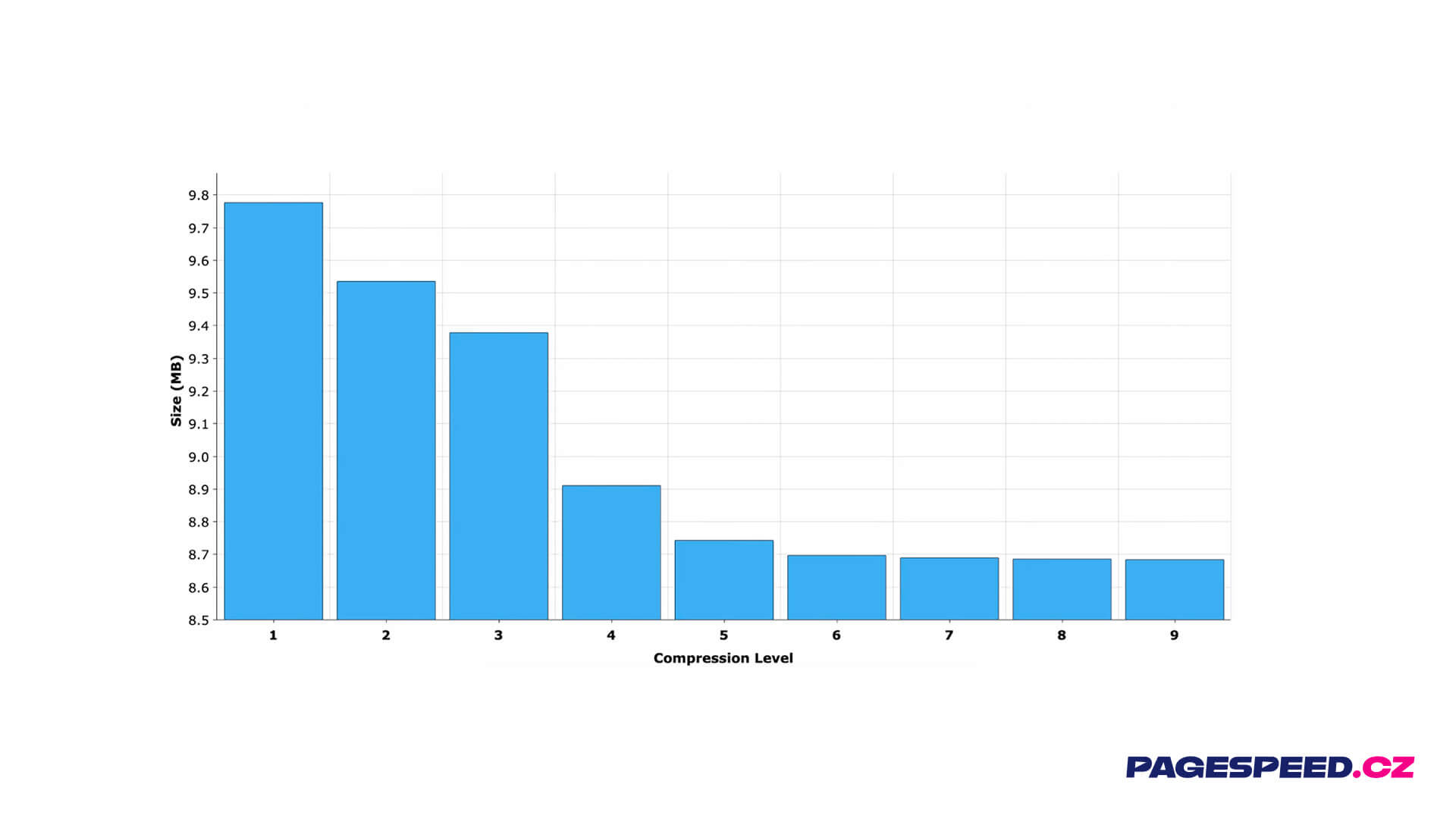 From level 6 onward, gains diminish.
On PageSpeed.cz we generally recommend level 6 as ideal. For a deeper explanation, check out the video What is the GZIP compression level sweet spot.
The quickest way to determine your compression level
You may be wondering how to check your site’s compression level. A handy online tool is [Compression Level Estimator], where you paste a URL and it estimates the likely compression level.
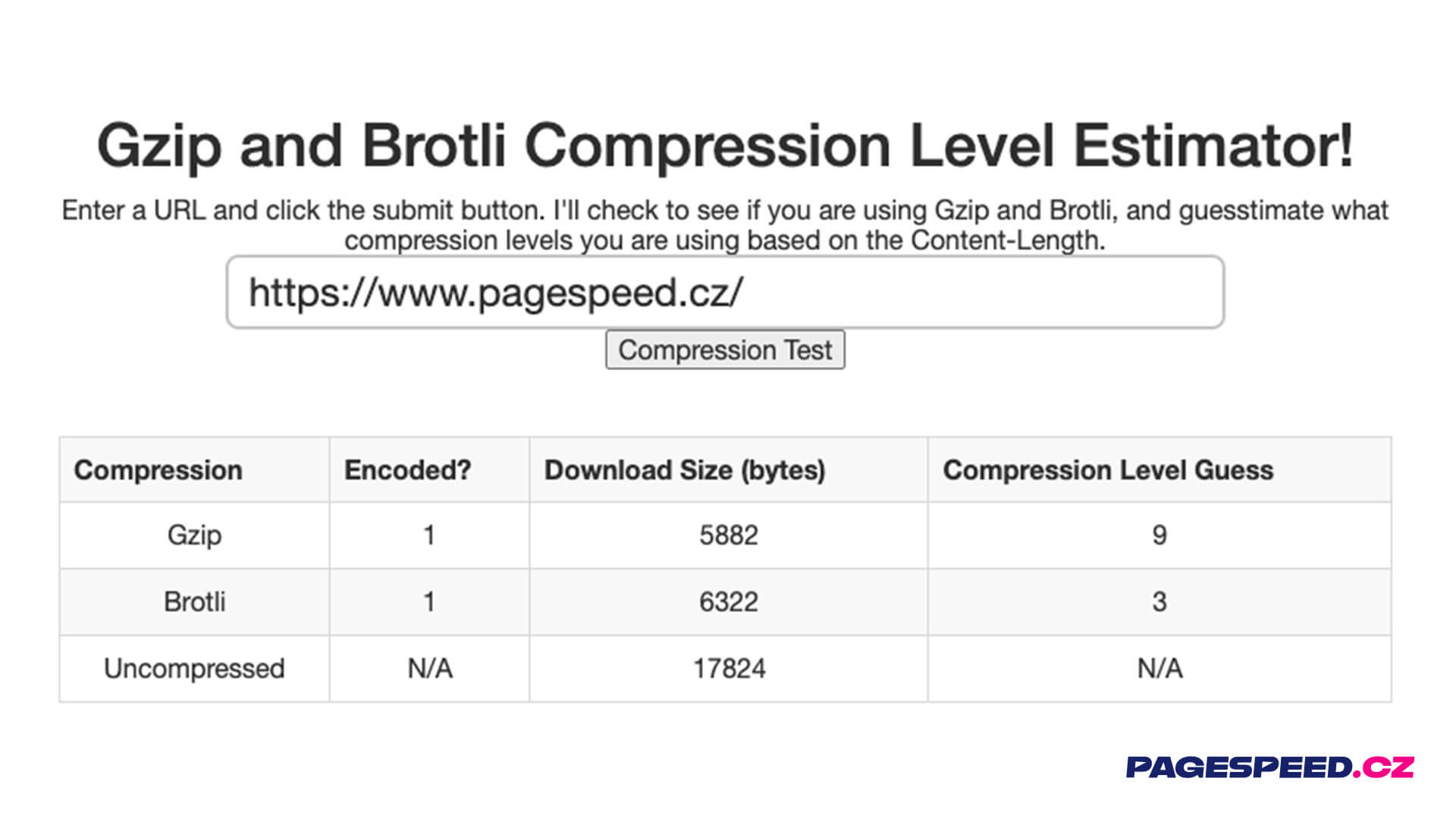
Well-set compression isn’t a given
We surveyed several of our clients’ sites. Six of 24 didn’t have ideal compression settings.
Fixing this isn’t hard. For Gzip, a responsible engineer—often the hosting provider or backend dev—should set the compression level. It’s a single-line Apache directive:
DeflateCompressionLevel 9
Simple, right? We helped a client where Gzip was level 1; after adjusting to level 6, HTML size dropped from 81 KB to 63 KB, about 22% savings.
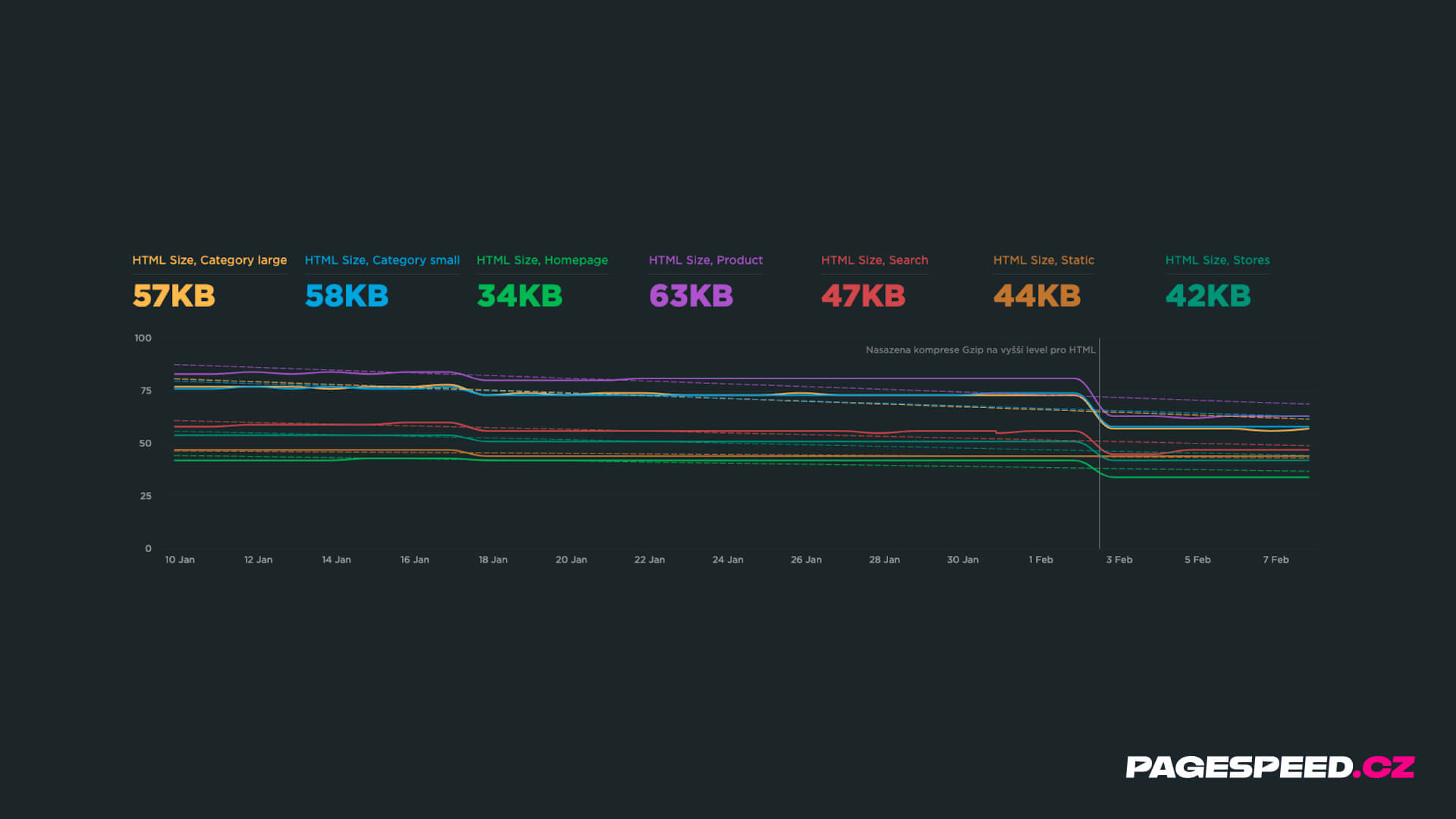 What happens to HTML data size when you raise Gzip level.
We also considered enabling Brotli, but it wasn’t feasible in that case. Brotli offers bigger savings but may increase load time due to longer runtime on the server.
Tip: Do you subscribe to our newsletter? Each month you’ll get tips to speed up your site.
There are also cases where data compression drops out entirely for a client. In graphs this shows as big “peaks” in data volume. Whether you’re downloading 600 KB or 100 KB of CSS is a huge difference and underscores the need to measure technical data sizes. These issues are easy to spot with proper monitoring.
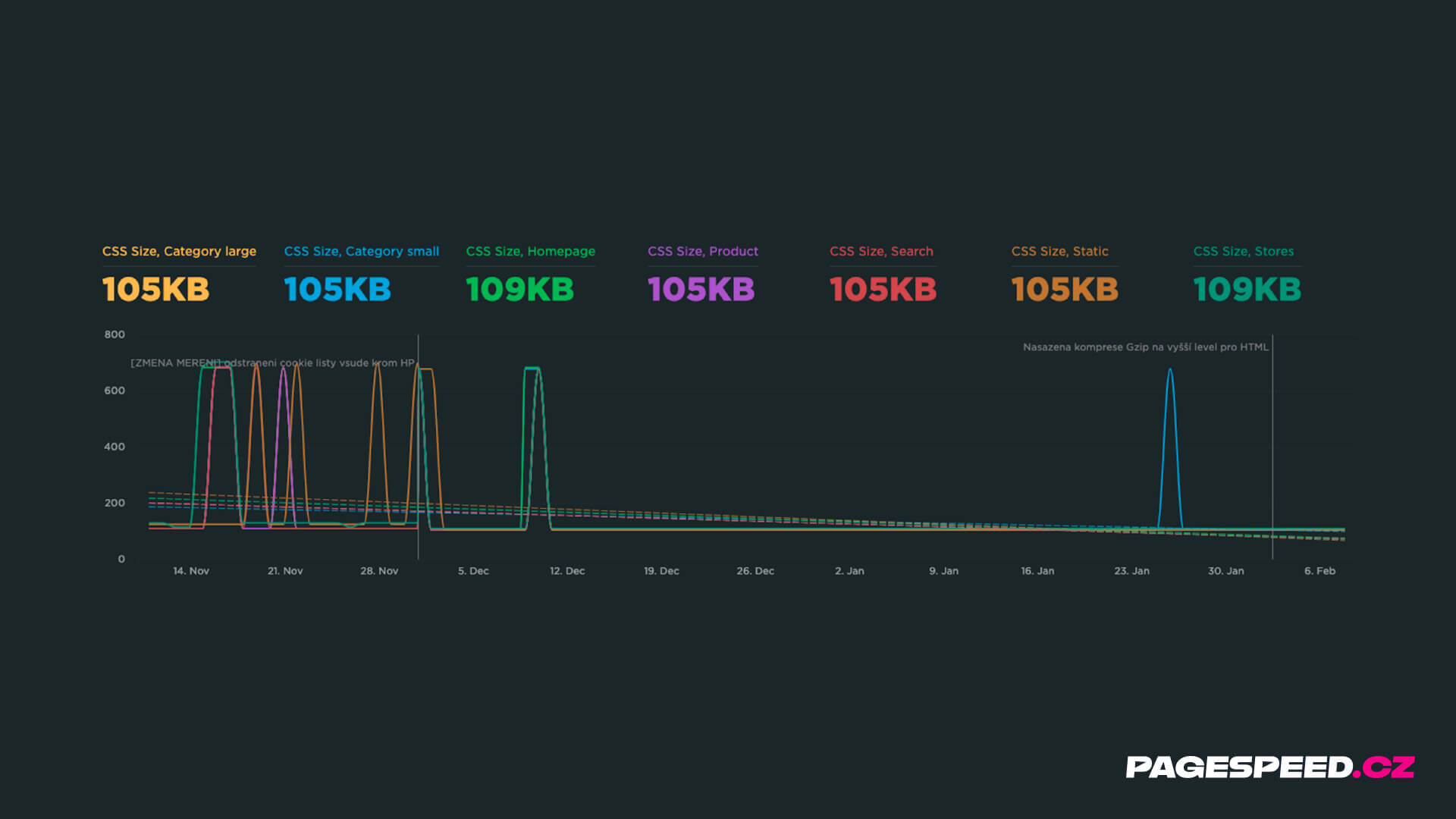 You don’t want to see this—loss of compression is costly.
Cloudflare as a fix for the lazy
Another option is to configure Cloudflare for your domain. Cloudflare caches your static files and applies optimal compression. Specifically, Cloudflare enables Brotli for CSS, JS, SVG, and more.
If you use Cloudflare, you can check your settings. Some plans require enabling Brotli.
Cloudflare is helpful even if your site runs on popular CMS like WordPress, Shoptet, or Drupal.
Summary
- Check compression settings in DevTools (Network tab) or Lighthouse.
- Generally aim for a compression level of 6.
- Levels above 6 offer diminishing returns.
- Fonts (WOFF/WOFF2) are already compressed.
- Higher compression levels increase server CPU time.
- If you spot issues, adjust the level.
- Cloudflare can automate this for you.
See also how you can help further with backend optimization.