DOM Optimization
A large and inefficient page structure (Document Object Model, i.e., the DOM) can significantly slow your web and negatively affect Core Web Vitals metrics. Keeping it reasonably sized and as efficient as possible is essential for the overall technical performance of your project and will impact interaction response speed (INP).
In this text you’ll learn what I’ve learned about the DOM from years of consulting. You’ll discover why its overall size matters, how to measure it easily, and how to optimize the HTML structure for faster rendering.
Size matters
DOM, the tree-like structure of components, grows quickly in real-world web. Adding elements and nesting them in HTML is easy. That’s why you need to slow down intentionally.
The DOM is considered too large when it has many elements or deep nesting. Google’s recommended maximum is 1,400 elements.
That’s quite strict, especially for larger sites like e-commerce or web apps. From our experience, 2,500 DOM elements is still manageable by modern browsers.
Once the number of DOM elements exceeds this threshold, things quickly become more complex. Of course, the smaller and more efficient it is, the better.
Why the DOM must be efficient?
Remember that HTML is, in the initial preparation phase, just a string of structured text for the browser. Ideally this is assembled on the server, then downloaded to the browser and converted into a dynamic tree. This is parsing.
Rendering is the end-to-end process. The diagram shows how HTML is parsed into the DOM, then combined with CSS to compute layout and paint to the screen.
But that’s not all. DOM construction happens during the initial rendering. The rendering pipeline has several steps, so DOM inefficiency can affect performance across the board.
- On the server: The more complex the DOM, the more data and database queries. HTML generation slows, impacting TTFB.
- HTML transfer to the browser: More data means longer network transfer, delaying metrics like FCP and LCP.
- Parsing HTML and building the DOM: More elements take longer to convert into a tree.
- Applying styles and computing layout: CSS selectors apply to more elements, extending layout calculations.
- Painting to the screen: This phase is well-optimized, but large DOM can still cause issues depending on CSS.
- On every interaction: The DOM is dynamic and responds to user inputs and JavaScript. A large DOM takes longer to reflect changes on screen.
An efficient DOM reduces pressure on the entire rendering pipeline—and also saves on the server side.
Info: Understanding rendering is key to a fast site. In our trainings we show you how this fascinating mechanism works, step by step.
How to test DOM complexity?
There are several ways to assess your DOM:
Lighthouse report
One of Lighthouse’s reports shows the total number of DOM elements on the page, the maximum depth of the DOM, and the maximum number of nested elements.
 You’ll see Lighthouse output in our test report detail.
DevTools Console
Another method is the DevTools console. With the page loaded, run this snippet:
[...document.querySelectorAll('*')].length;
In Chrome this looks like this:
 The image shows a result of 932 elements on the page.
DOM element count in the “Technical” report
In our monitoring PLUS we fetch the DOM element count for each measured page. The graph shows how the site has evolved over time.
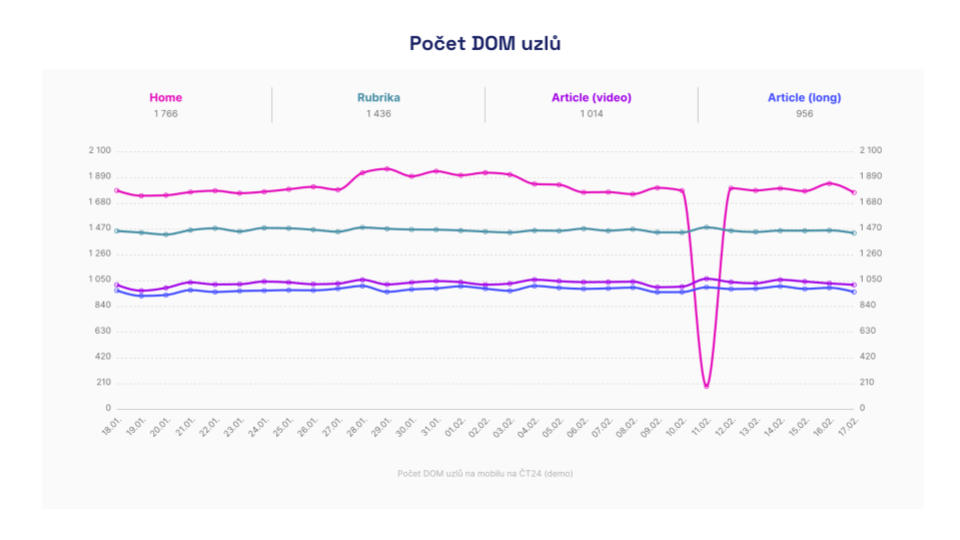 Graph from the Technical report showing the evolution of DOM element counts over time. It also shows where the homepage had an rendering issue.
DOM optimization
Our recommendations will change how you view HTML and the DOM. You might be surprised at first. The DOM doesn’t have to be large—even on very complex pages.
Remove what isn’t needed during initial load
The most effective approach is to delete and lazily load everything that isn’t essential. How to decide what to remove?
- Does the component provide meaningful informational value? Robots can’t handle certain components well, such as forms and filters. They don’t need to be in the initial code structure.
- Is it purely a visual element? Visual elements must be described textually for machine readability. Examples include dynamic charts and maps.
- How much added value does the component bring to the main content? We often overload sites with ancillary information, such as chats, side contact boxes, full sidebars, or footers. These may not need to be in the initial DOM.
- Isn’t it specific to a single user? Removing such content improves cacheability. Examples include user profile boxes, the cart, and recently viewed products.
- Is content duplicated in some component? Duplicates bloating the DOM. Historically duplication was the only correct approach for coders. Today with modern CSS this isn’t necessary. Duplicated components can be generated and rendered on demand via JavaScript. An example is the main navigation often duplicated for mobile and desktop.
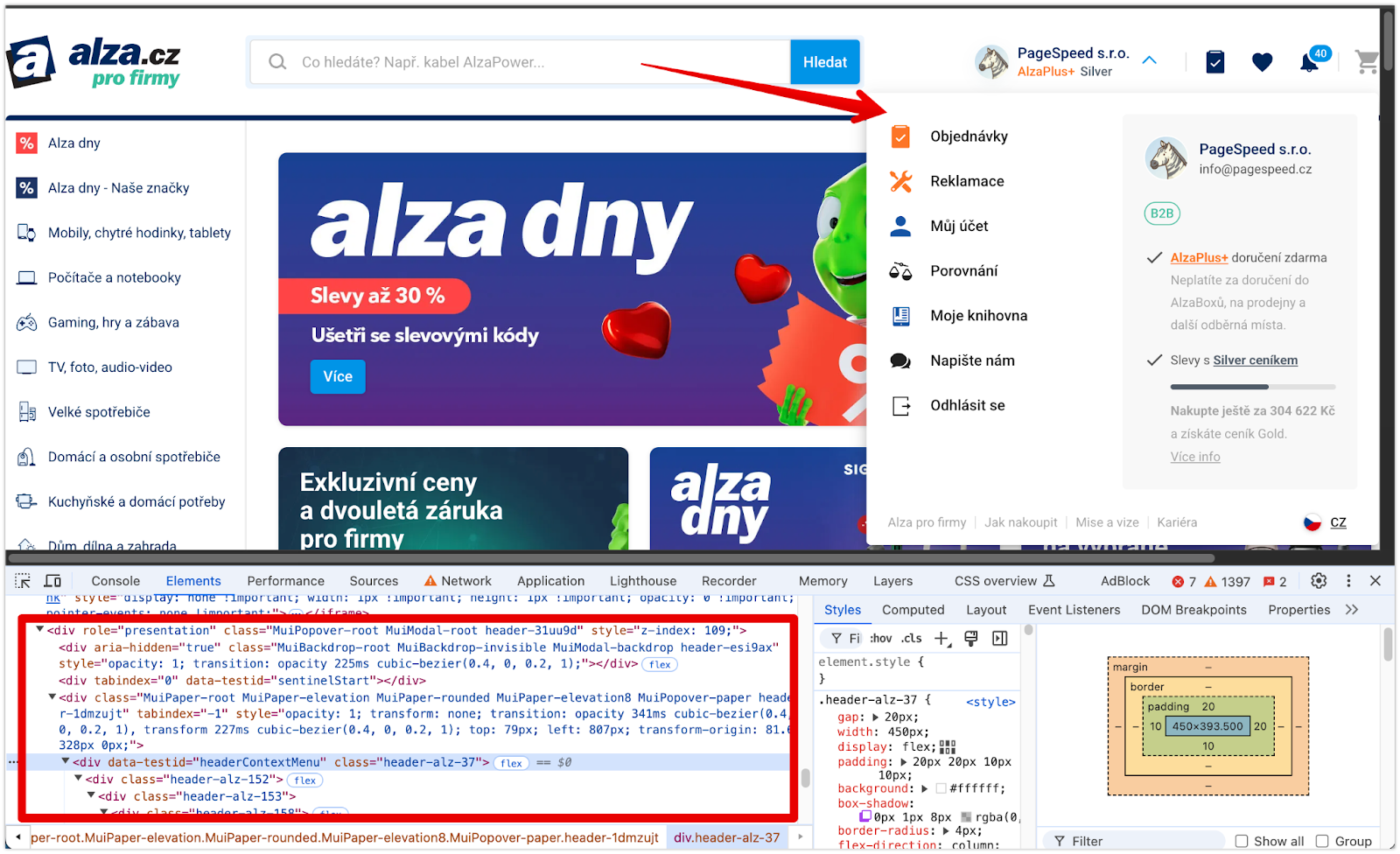 The user menu on alza.cz appears in the DOM after opening the dropdown and is removed when closed.
Simplify components until they’re visible
Even if a component or its content is important for SEO or accessibility, it doesn’t have to be fully feature-rich on the initial render. Especially if the component isn’t visible in the initial viewport.
How many components will the user actually see? Some are hidden behind interactions (e.g., megamenu), others appear after scrolling. Do you really need all components in the final HTML?
Splitting into lightweight and richer versions is particularly effective for elements that repeat on the page (e.g., category pages, product listings, and other offers). For example, this approach can be implemented with Intersection Observer to load the richer version when the user reaches the component.
import React from 'react';
import { useInView } from 'react-intersection-observer';

const Offer = ({ images, title }) => {
	const { ref, inView, entry } = useInView();

	return (
		<article className="offer" ref={ref}>
			<div className="gallery">
				{!inView ? <Image data={images[0]} /> : <ImagesCarousel data={images} />}
				<h3>{title}</h3>
			</div>
		</article>
	);
};
When you compare the important content to the resulting HTML, you’ll see the DOM skeleton can be quite simple. Visual richness can be added on the frontend as the user visits.
Concrete optimization example further below.
Optimize long lists and tables
Long lists or large tables will always take longer to render. Keep content at a reasonable length. A product list with 100 items isn’t helpful.
Content must be paginated, and if you want infinite scrolling, use virtual scrolling or remove non-visible items from the DOM while reserving space for them.

Simplify component structures
UI often contains many components. With modern HTML and CSS, we can reduce unnecessary wrapper elements that only serve layout.
A common pitfall is star rating with multiple nested SVG stars:
// Bad
<StarRating>
	<SVGStar />
	<SVGStar />
	<SVGStar />
	<SVGStar />
	<SVGStar />
</StarRating>
This can be solved with a single element that has a width and a repeating background.
DOM optimization: real-world examples
As speed consultants, we’ve completed numerous DOM optimizations.
You can optimize the DOM on almost any project, since it’s often not under direct supervision. Here are two optimizations that significantly helped and improved INP metrics.
At Ben.cz, after consulting with SEO experts, we tackled megamenu optimization, which had nearly 3,000 elements on every page.
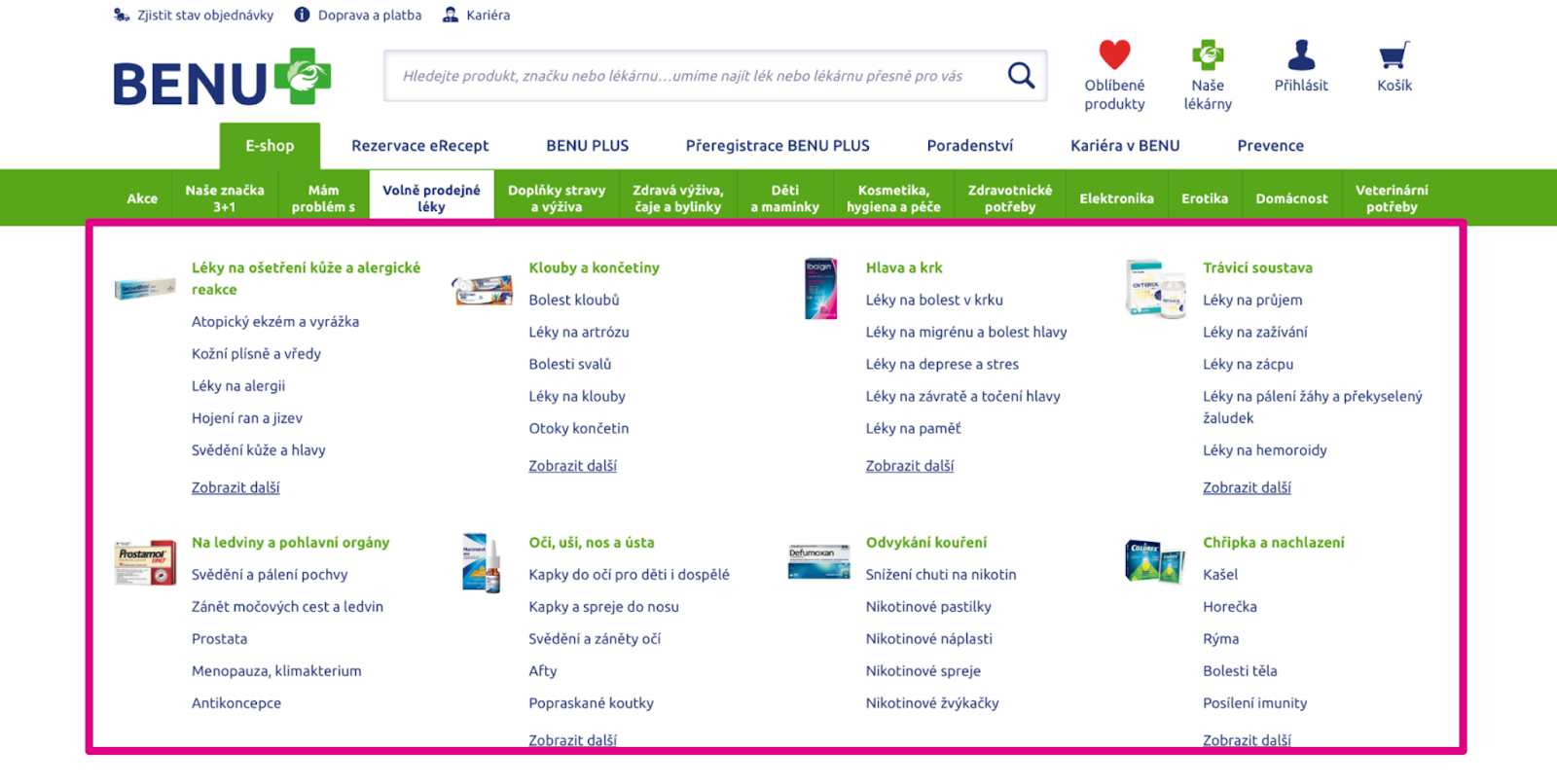
We focused on reducing nested subcategories. Less important categories load lazily as needed.
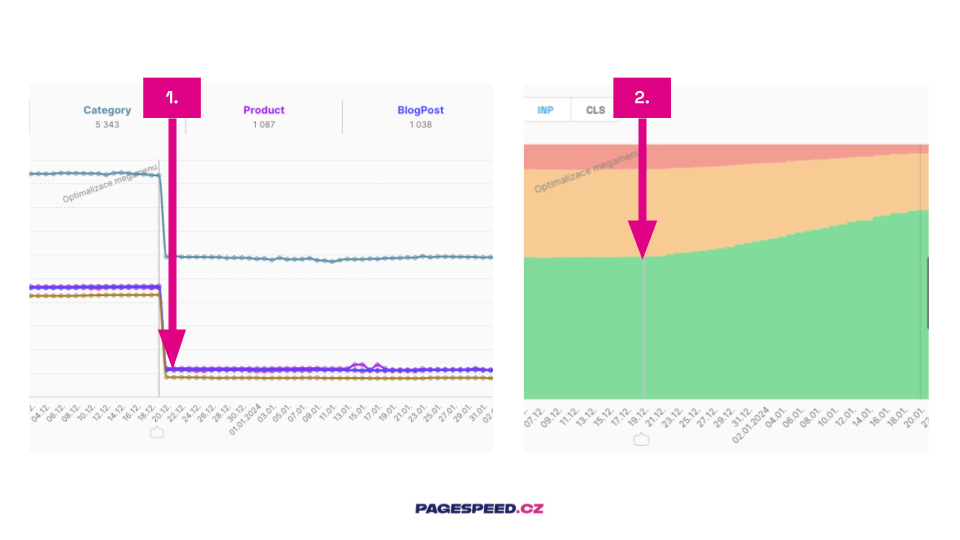
What you see:
- The impact of optimization is visible on specific pages.
- Domain-wide, the INP metric improved after the optimization.
Placeholder lightweight components
[MegaUbytovanie.sk] is a content-rich project—like a Czech-Slovak Booking. The site uses React and contains many navigational blocks with offers. We designed lightweight components that provide only SEO-critical data on initial load. This state is visually hidden from the user. The “rich” version activates when the component enters the viewport.
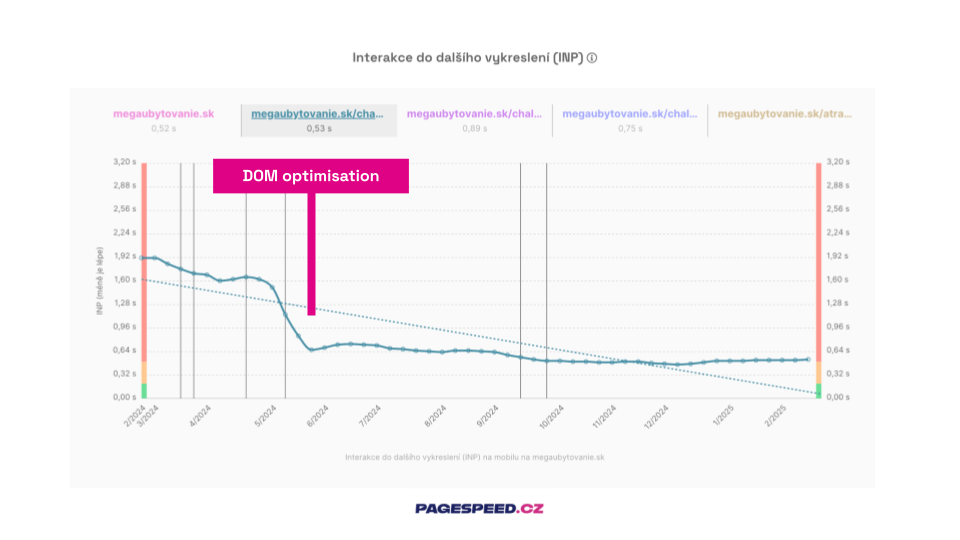 The impact of DOM optimization on INP for a listing page.
Watch out for CLS
When optimizing the DOM, ensure layout stability so faster rendering doesn’t introduce CLS issues. Always reserve space for lazy-loaded and simplified components using placeholders, and remove components during scroll.
Scroll-based layout shifts are not considered user actions for CLS metrics, so shifting layouts can be penalized.
Conclusion
The DOM is the backbone—of everything.
Nowhere else can you achieve as much optimization in a single place as with the DOM. Give it the attention it deserves; the payoff is worth it.
Efficient DOM improves content relevance, reduces TTFB concerns for indexability, and speeds up your product. All of this leads to higher conversions.
Tagy:DOMOptimalizaceHTML